
WordPress set the block editor as the default in version 5.0, released in December 2018, replacing the classic editor. WordPress's documentation says the Classic Editor plugin must be installed to use the classic editor, making it the right choice for most people.
This guide explains the plugin steps, the per-user option, the widgets plugin, how to switch back, and the code filter for developers. To learn about the editor you are leaving, read the Gutenberg tutorial.
Should you turn Gutenberg off?
Turn it off if you depend on plugins that extend the Edit Post screen, add old-style meta boxes, or rely on the previous editor in other ways. The Classic Editor plugin describes this as its purpose. If you just dislike the look of blocks, first try the block editor tutorial.
Be aware of the support timeline. The plugin page says Classic Editor will receive full support and maintenance until 2024, or as long as needed. That date has passed, so check the plugin page for its current status and latest update before relying on it for a long term site.
Which option fits you
- Return the whole site to classic: Classic Editor, with the default editor set for everyone.
- A team using both editors: Classic Editor with switching enabled, so each user can select an editor for each post.
- Just certain posts or post types: the Disable Gutenberg plugin, which gives you more control over where Gutenberg is replaced.
- Just widgets: Classic Widgets, which brings back the previous widgets screens.
Turn it off with the Classic Editor plugin
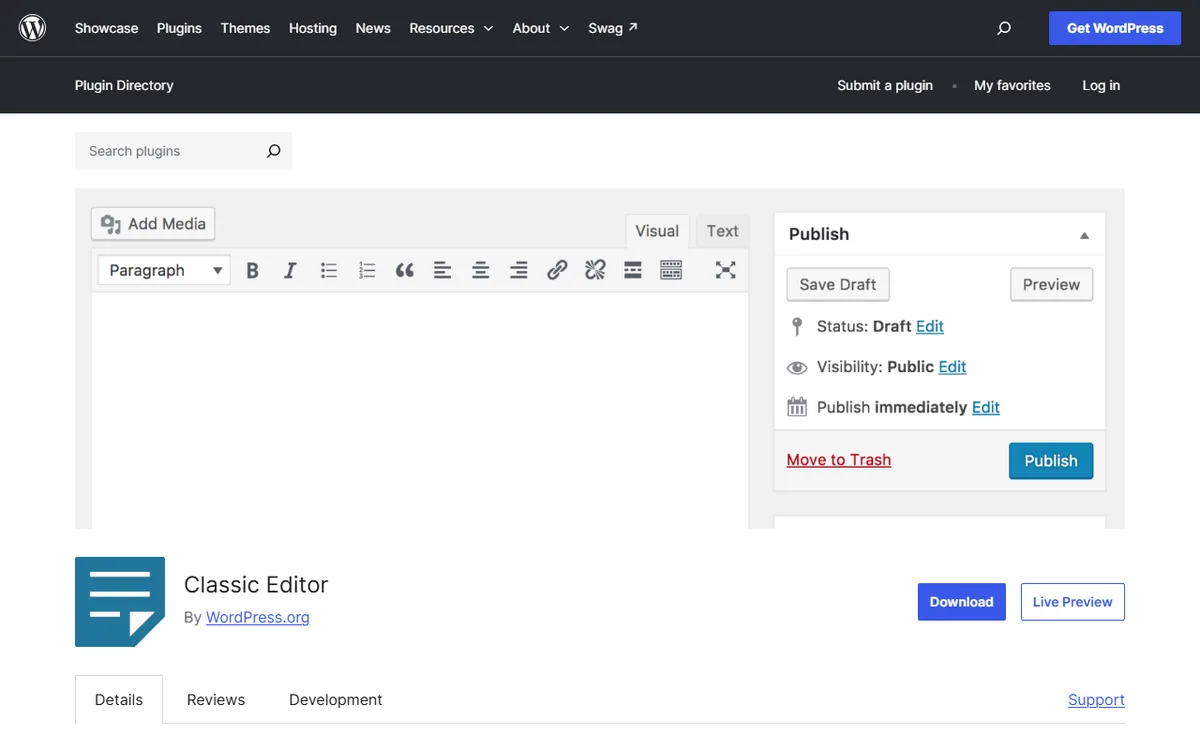
Classic Editor is an official plugin maintained by the WordPress team. It brings back the previous classic WordPress editor and the Edit Post screen.
- In your dashboard, visit Plugins > Add New and look for Classic Editor.
- Install the plugin from WordPress.org, then select Activate.
- Visit Settings > Writing to set the default editor for all users. Administrators can choose the default editor and decide whether users may change it.
- Open a post or page to make sure it loads in the classic editor.
Multisite owners also have a network setting. It allows you to choose the default editor for the entire network and let site admins change it.
An alternative plugin
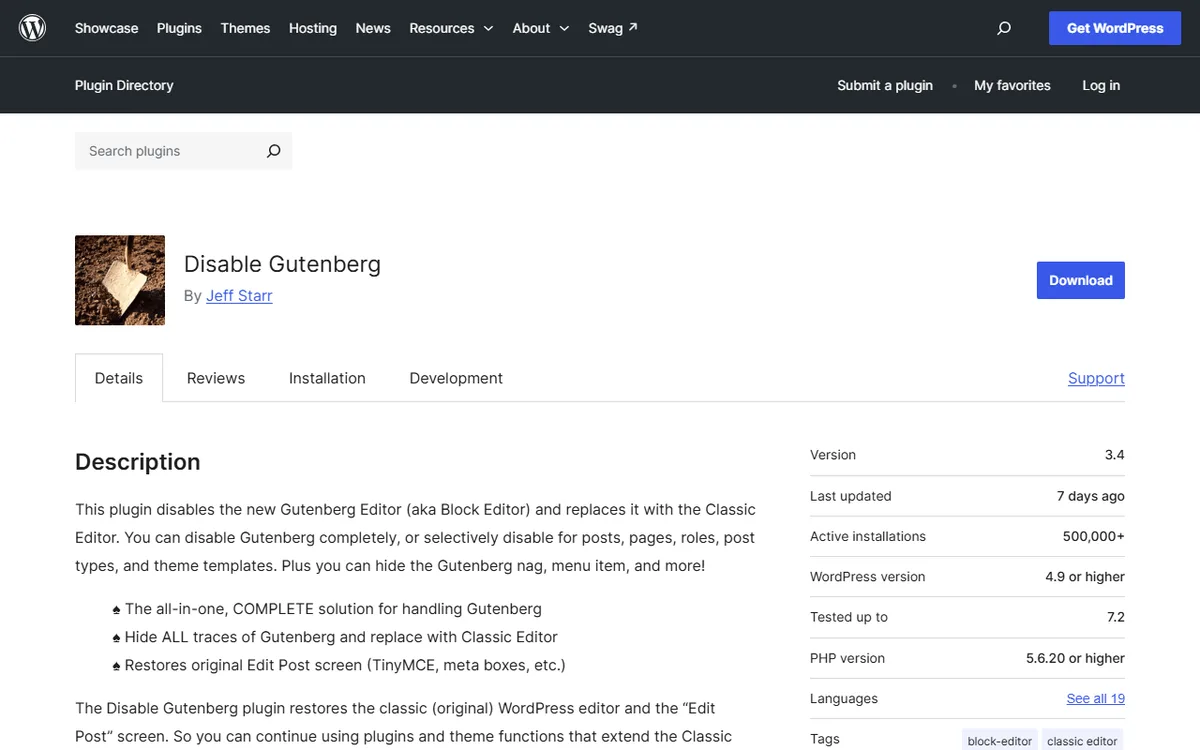
According to its WordPress.org page, the Disable Gutenberg plugin does what Classic Editor does, but gives more precise control over where Gutenberg is replaced. Its author says they plan to develop it for the long term but cannot make promises.
Let each user or post choose
When administrators let users change their default editor, users can choose an editor for each post. Each post opens in the last editor used for it. Find the settings at Settings > Writing, and user settings on the Profile screen.
When switching is enabled, the plugin displays links to switch to the block editor while you work in the classic editor, and to the classic editor while you work in the block editor.
The Disable Gutenberg plugin also offers an option for individual posts. Turn on Display Edit Links to show Add New (Classic) in the Posts, Pages and custom post type menus, and Classic Edit and Block Edit links below posts, but only where the block editor is enabled.
Turn it off for widgets
The block editor also handles widgets. Classic Widgets is an official plugin maintained by the WordPress team that brings back the previous classic widget settings screens. When you use a classic, non-block theme, activating the plugin prevents the block editor from managing widgets.
There are no settings. Activate or deactivate the plugin to enable or disable the classic widget screens. It does not work with full site editing and block themes, since block themes depend on blocks. The plugin page says it will be supported and maintained to 2024, or for as long as necessary.
The Disable Gutenberg plugin also includes a Classic Widgets option to restore classic widgets.
Switch back to the block editor
If users can switch editors, use the switch link while editing a post. If not, deactivate the Classic Editor plugin to make the block editor the default again.
Content in a Classic block can be changed into separate blocks. Follow these steps.
- Open the post or page using the block editor.
- Choose the Classic block.
- From the Classic block's toolbar, select Convert to blocks.
- Review the result and correct any block that did not convert as you expected.
Without a plugin
WordPress's user documentation directs you to the Classic Editor plugin. Developers can use the Code Reference for a code based option. The use_block_editor_for_post filter determines whether a post can be edited in the block editor. It accepts a true or false value indicating whether the post can be edited, along with the post being checked.
A second filter, use_block_editor_for_post_type, works the same way for an entire post type and accepts the post type as its second parameter. Both filters were added in WordPress 5.0.0.
Because this involves code, make a full backup before trying it, and use the plugin option above if you are not comfortable editing theme or plugin code.
Would you rather use a page builder than the classic screen? Compare options in Elementor free vs Pro or the WordPress builders overview, or learn how to build a WordPress site.
Sources
- WordPress Block Editor documentation
- Classic Editor plugin
- Disable Gutenberg plugin
- Classic Widgets plugin
- wordpress.org: Classic block
- developer.wordpress.org: Use_block_editor_for_post
- developer.wordpress.org: Use_block_editor_for_post_type
Frequently asked questions
How do I disable Gutenberg in WordPress?
Install and activate the official Classic Editor plugin, then set the default editor under Settings > Writing. Developers can also use the use_block_editor_for_post filter.
Can users choose between the classic and block editor?
Yes, if administrators permit it. Users can then select an editor for each post, which opens in the last editor used for that post.
How do I get classic widgets back?
Enable the Classic Widgets plugin. It brings back the previous widgets screens for classic themes and requires no settings. It does not work with block themes.
How do I convert classic content to blocks?
Open the post in the block editor, select the Classic block, and choose Convert to blocks from its toolbar. Then review the result.
Is the Classic Editor plugin still supported?
Its WordPress.org page states that it will be fully supported and maintained until 2024, or for as long as necessary. Check the plugin page for its current status.