
If you already subscribe to Divi, upgrading to Divi 5 costs nothing extra. Elegant Themes says it is free for every Divi member and comes as a regular theme update. The key questions are what changes, what might break and whether to switch now. This page answers them in that order. For the initial cost of Divi, see the Divi pricing guide.
All the information below comes from Elegant Themes' own pages. If those pages do not provide an answer, this guide says so rather than making a guess.
Divi 5 in one paragraph and the current version
Divi 5 is a rebuilt version of Divi that Elegant Themes describes as focused on performance and advanced design systems. The release post, dated February 26, 2026, says Divi 5 officially left beta that day, following more than a year of public testing.
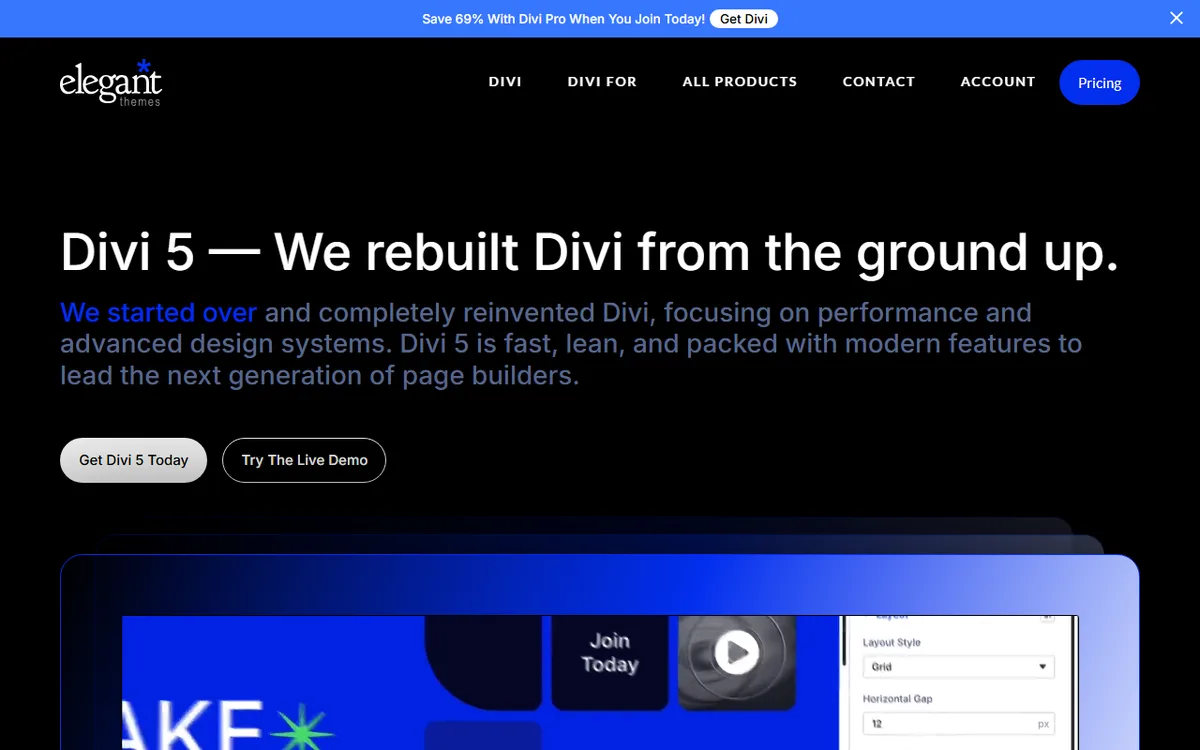
The newest release listed on the official Divi 5 update status page is Divi 5.19, released November 6, 2026. It brings collaborative Notes to the Visual Builder, including conversations linked to elements, assignments, mentions, labels and notifications. Divi 5 receives frequent updates, so check the page before planning around a version number. Titled Divi 5 Update Status, the page serves as the Divi 5 changelog.
Recent releases at a glance
| Version | Released | What it added |
|---|---|---|
| Divi 5.19 | November 6, 2026 | Collaborative Notes in the Visual Builder |
| Divi 5.18 | October 27, 2026 | Variable picker, nested variable previews and variable math in supported number fields |
| Divi 5.17 | October 22, 2026 | Icon picker and Icon Manager with custom SVG and icon font imports |
| Divi 5.16 | October 16, 2026 | Collapsible Mobile Menu option, bulk editing for multi-selected elements |
| Divi 5.15 | October 9, 2026 | Components features, including a Slot module, nested components, import and export |
Before each migration and any major build, check the Divi 5 update status page again. The official pages do not specify which release you need, so use the table to see the pace, not as a checklist.
Divi 4 vs Divi 5: what is documented
Elegant Themes' comparison article identifies the differences below. If you are deciding between Divi and a different builder, the Divi vs Elementor comparison explains that choice.
| Area | Divi 4 | Divi 5 |
|---|---|---|
| How content is stored | WordPress shortcodes | A block based storage format similar to Gutenberg's approach, converted at the database level by the Migrator |
| Breakpoints | Three fixed breakpoints | Seven customizable breakpoints |
| Builder speed and site speed | The editor could feel sluggish on complex pages | Described as noticeably faster and more responsive, with Dynamic Framework, Dynamic Assets, on-demand JavaScript and automatic Critical CSS. The article says Google PageSpeed scores of 100 are possible. Pages with even one legacy module do not get the full boost |
| Support | Security and compatibility fixes for at least 12 months after February 26, 2026, and longer if practical | New feature development happens here |
Divi 5 also adds features that the comparison lists without an equivalent in Divi 4. These include CSS Flexbox, CSS Grid and nested layouts, Element Presets and Option Group Presets, Global Variables, Relative Colors with HSL, and the Style Inspector. Interface additions include the Command Center, Layers Panel, right-click menus, settings search, and the Canvases Editor.
Third party modules not updated for Divi 5 run in a compatibility layer built on the Divi 4 framework. In the new Visual Builder, Divi 5 creates a settings panel for these modules from native field types, and changing a setting requires an Ajax reload.
New features worth learning first
Elegant Themes' feature article says Divi 5 adds “over 22 new features” and names 41 numbered items. You do not need to use them all on day one. If you are new to Divi 5, begin with the features that change how you build.
- Layout: Flexbox Layout, Grid Layout, nested modules and rows, the Loop Builder and a visual Grid Editor for CSS Grid layouts.
- Design system: Design Variables, Option Group Presets and the Preset Manager help keep colors, sizes and styles consistent throughout a site.
- Components: reusable sections, rows and modules that remain linked, so changing a component updates all its copies.
- Loops and filtering: the Post Filter module lets you filter a page Loop by search, categories, price range and sort order.
- Icons: with the Icon Manager, you can import custom SVGs or an icon font, group them into collections and select which collections show as you build.
- Divi AI Agent: included in the Visual Builder and capable of taking real actions on a site. A Divi AI subscription is required.
Elegant Themes also lists new modules, including Charts, Gravity Forms, Imagely, and Payment Button, as well as an Interactions system and a Lottie module.
Start a new site on Divi 5
Elegant Themes recommends using Divi 5 on new WordPress websites or in a staging environment before going live. Since a new site has no Divi 4 content to convert, you can skip the Migrator entirely. If you do not have a WordPress site yet, set one up first with how to build a WordPress site. The official install article assumes you have a working site and an Administrator login, and requires an active Elegant Themes membership to download Divi 5 and get updates.
Requirements
The official minimum requirements page specifies these versions.
- WordPress version 6.7.2. According to the page, Divi 5 depends on updated WordPress packages for the Visual Builder, so other WordPress versions may have incompatible package updates. It also says Elegant Themes is working to support older versions and will set a minimum when that work is complete.
- PHP version 7.4 or later.
- WooCommerce 9.6.2 or later, only when WooCommerce is installed.
Two other official pages make this less clear. The Divi hosting requirements list WordPress 5.3 or higher and recommend the latest version, without naming 6.7.2 as the minimum. The Divi 5 update status page describes fixes related to WordPress 7.0 and 7.1, but those release notes do not mean every current WordPress release is supported. If you use a newer WordPress version, test it on staging first.
Download, install and activate
- Sign in to your Elegant Themes account and locate Divi 5 in the Themes and Plugins section.
- Click Download The Divi 5, then save the .zip file without unzipping it.
- In the WordPress Dashboard, go to Appearance → Themes, click Add New, then choose Upload Theme.
- Click Choose File, choose the Divi 5 .zip, then click Install Now.
- Click Activate on the success screen. Or go to Appearance → Themes, hover over Divi 5, and click Activate.
- Link your license. You can use the onboarding wizard (click Log In To Activate Your License, sign in and confirm) or set it up manually. To do it manually, copy or create an API key under Account, Username and API Key in your Elegant Themes account. Then, in WordPress, go to Divi → Theme Options → Updates, enter your username and API key, and click Save Changes.
The separate article on updating Divi 5 is for a theme that is already installed, not for a new install. The Enable Divi 5 Updates switch under Divi → Dashboard is for sites already running Divi 4, covered in the next section.
Upgrade a Divi 4 site with the Migrator
Prepare everything before clicking anything. Elegant Themes recommends making a full backup of the database, uploads, theme files and plugin files, and setting up a staging site. Update WordPress, Divi and all plugins first, then make sure Marketplace extensions have the Compatibility with Divi 5 tag.
- Sign in to WordPress, go to Divi → Dashboard and click Enable Divi 5 Updates.
- In the Divi Overview card, click Update, then click Update now.
- Open Divi → Divi 5 Migrator and review the compatibility scan. It checks pages, posts, custom post types, Theme Builder templates, WooCommerce products, Divi Library items, widgets and presets.
- Click Migrate This Site to Divi 5, then confirm.
- Review the front end of your key pages, then open several pages in the Divi 5 Visual Builder. Check WooCommerce pages, menus and Theme Builder templates, and test your third party plugins.
Use the scan as a pre-flight checklist
The Migrator report lists affected pages, Theme Builder templates, Woo products, Library items and widgets, along with compatibility details across 9 sections. Before clicking Migrate, note every unsupported module listed, including third party modules. The Migrator will wrap those modules in the Divi 4 framework until their developer provides a Divi 5 upgrade path.
What the Migrator converts and what it does not
The Migrator changes compatible Divi 4 modules from shortcodes to Divi 5's storage format and preserves design settings, content and configuration. Modules it cannot convert are placed in a compatibility layer that runs on the legacy Divi 4 framework, allowing them to continue working. This includes third party modules that have not yet been updated for Divi 5. Elegant Themes recommends running the Migrator again after the developer creates a Divi 5 upgrade path.
Leaving modules unconverted has a cost. Even one legacy module on a page means it loads the Divi 4 framework and misses the full Divi 5 performance boost. Pages using only Divi 5 supported modules retain full performance. Every core Divi 4 module, including the WooCommerce modules, works with Divi 5.
Elegant Themes' article on backward compatibility identifies Quick Access and Draggable Spacing as Divi 4 features that Divi 5 does not fully support. It also notes that custom CSS written for Divi 4 modules may require slight changes after migration.
After migrating: move to the new design system
A migrated site retains its old hard-coded values. The Divi AI Agent can turn hard-coded values into variables and repeated styles into presets, one page at a time. It comes with every Divi AI subscription.
Rollback and common problems
The best way to roll back is to use the full backup you made before migrating. Elegant Themes recommends restoring it if testing finds problems. Without a backup, the official method involves a sequence that you must complete in full. Restoring only the content does not return the theme to Divi 4.
- Restore the content by going to Divi → Divi 5 Migrator and clicking Restore Divi 4 Content. This recovers only content originally built in Divi 4. It does not restore content created in Divi 5. WordPress post revisions can also recover unconverted content.
- Restore the theme. Go to Divi → Theme Options, select the Updates tab, click Rollback to the Previous version, then confirm.
- If you have installed two or more Divi 5 updates, the built in rollback will not work. Reinstall Divi 4 manually. Download the Divi theme from My Downloads in your Elegant Themes account. In WordPress, go to Appearance → Themes → Add New Theme → Upload Theme, select Divi.zip, then click Replace current with uploaded.
- To keep getting Divi 4 updates, go to Divi → Dashboard and click Disable Divi 5 Updates. After a successful rollback, the site can continue receiving Divi 4 updates. You can switch back later by clicking Enable Divi 5 Updates.
If the site looks wrong after updating
Elegant Themes' troubleshooting article begins with the cache. Divi 5 uses a static CSS cache, so clear it first by going to Divi → Theme Options → Clear CSS Cache. Next, check in Theme Options that Divi 5 is up to date. If an update stopped midway, run it again until every check is marked completed.
If the issue continues, deactivate non-Divi plugins to check for a conflict, but keep WooCommerce active if your key pages rely on it. Temporarily turn off custom CSS as well, since markup and class names can change between versions. For a Custom HTML wrapper, edit the page in the Visual Builder, open module settings → Advanced → HTML and make sure tags opened in HTML Before are closed in HTML After. You can also use Safe Mode in the Divi Support Center to disable plugins and custom code for your user while testing.
Upgrade now or wait
Elegant Themes says Divi 4 will receive full support for at least 12 months after Divi 5's official release on February 26, 2026, and longer if practical, including security and compatibility fixes for new WordPress versions. The official pages do not specify an end date for Divi 4 support beyond that.
This gives you time to wait, but waiting comes at a cost. New feature development takes place in Divi 5. The company also notes that Divi 5 gets new updates constantly, that you may encounter occasional bugs and that third party Marketplace products may not be fully supported.
- Switch now if you use only core Divi modules, can test on a staging site, and want the new design tools.
- Wait a bit if your site relies on third party modules without listed Divi 5 compatibility. Check a module's compatibility on its Divi Marketplace product page. If no details appear, contact the author.
- Test first in every case on a staging copy, and leave the live site on Divi 4 until you are sure.
A learning path for Divi 5 tutorials
Elegant Themes offers nearly 200 Divi 5 help articles, detailed tutorials in the Divi Resources category of its blog, and update videos on YouTube. The comparison article includes several as related reading. This guide recommends reading them in the order below.
- Everyone: read the Divi 5 Update Status page, the changelog.
- New to Divi 5: “Part 2: Exploring Every Aspect of the Divi 5 Interface” explains where things are.
- First project: “Part 5: Building A Divi 5 Homepage From Scratch” guides you through a complete page.
- Layout skills: “Part 10: Mastering Flexbox in Divi 5” explains the layout system.
- Divi 4 users moving over: read Why Divi 5 Is Better than Divi 4, then use the migration steps above.
- For everything else: “Exploring Divi 5's New Features” covers all 41 items.
For membership plans, prices and included benefits, consult the Divi pricing guide.
Sources
- Why Divi 5 Is Better than Divi 4
- Divi 5 Official Release Announcement
- How to Safely Migrate from Divi 4 to Divi 5
- Divi 5 Update Status
- What Is the Divi 5 Migration System
- Backward Compatibility and Support for Third-Party Modules
- Exploring Divi 5's New Features
- help.elegantthemes.com: Install and activate divi 5
- Minimum Requirements for Divi
- help.elegantthemes.com: Divi hosting requirements optimizing your server for peak performance
- help.elegantthemes.com: How to update the divi 5 theme
- How to Revert to Divi 4
- How to Resolve Display Problems After Updating Divi 5
Frequently asked questions
When did Divi 5 come out of beta?
Elegant Themes reports that Divi 5 officially left beta on February 26, 2026, following more than a year of public testing.
What is the latest version of Divi 5?
The official Divi 5 update status page identifies Divi 5.19, released November 6, 2026, as the latest release. It introduced collaborative Notes in the Visual Builder.
What do I need to run Divi 5?
The official requirements page lists WordPress 6.7.2, PHP 7.4 or later, and WooCommerce 9.6.2 or later if WooCommerce is installed. It notes that updates to other WordPress versions may include incompatible packages and that a minimum version will be set after compatibility work is complete.
How do I upgrade from Divi 4 to Divi 5?
Back up your site, turn on Divi 5 updates under Divi → Dashboard, run the update, then go to Divi → Divi 5 Migrator and select Migrate This Site to Divi 5. Unsupported third party modules continue to run through the Divi 4 framework.
Can I go back to Divi 4 after migrating?
Yes, in two steps. In the Migrator, click Restore Divi 4 Content, which restores only content originally created in Divi 4, then revert the theme under Divi → Theme Options → Updates. If you have installed two or more Divi 5 updates, reinstall Divi 4 by hand. To keep receiving Divi 4 updates, click Disable Divi 5 Updates under Divi → Dashboard.