
SeedProd allows you to work on a WordPress site privately while visitors see a placeholder page. Create the page in the drag-and-drop editor, then switch it on with a toggle in the SeedProd dashboard. Logged-in users still see the regular site.
SeedProd also offers Maintenance Mode for making updates to a live site, and search engines treat the two modes differently. This guide explains which mode to use, how to set up each one, what the free version offers, and what to check if the page does not appear. For prices and paid plans, see SeedProd pricing.
Coming soon mode or maintenance mode: which you need
Choose coming soon mode for a site that is being built, and maintenance mode for brief work on an existing site. SeedProd's documentation says coming soon mode hides a site under construction and lets search engines index the page before launch, while maintenance mode is for minor updates and tells visitors the site is under maintenance.
| Coming soon mode | Maintenance mode | |
|---|---|---|
| Best for | A new site under construction | Short-term work on an existing site |
| Status sent to search engines | 200, so the site can be indexed while under construction | 503, which tells search engines the site is undergoing maintenance and should return in 1 day |
| Who sees the page | Visitors who are not logged in to WordPress | Visitors who are not logged in to WordPress |
| Who sees the real site | Logged-in users | Logged-in users |
The WordPress.org listing says to always choose coming soon mode for a site under construction. SeedProd also cautions that Google will not index the site if you use maintenance mode for a launch. For a new site, choose coming soon mode.
Install SeedProd
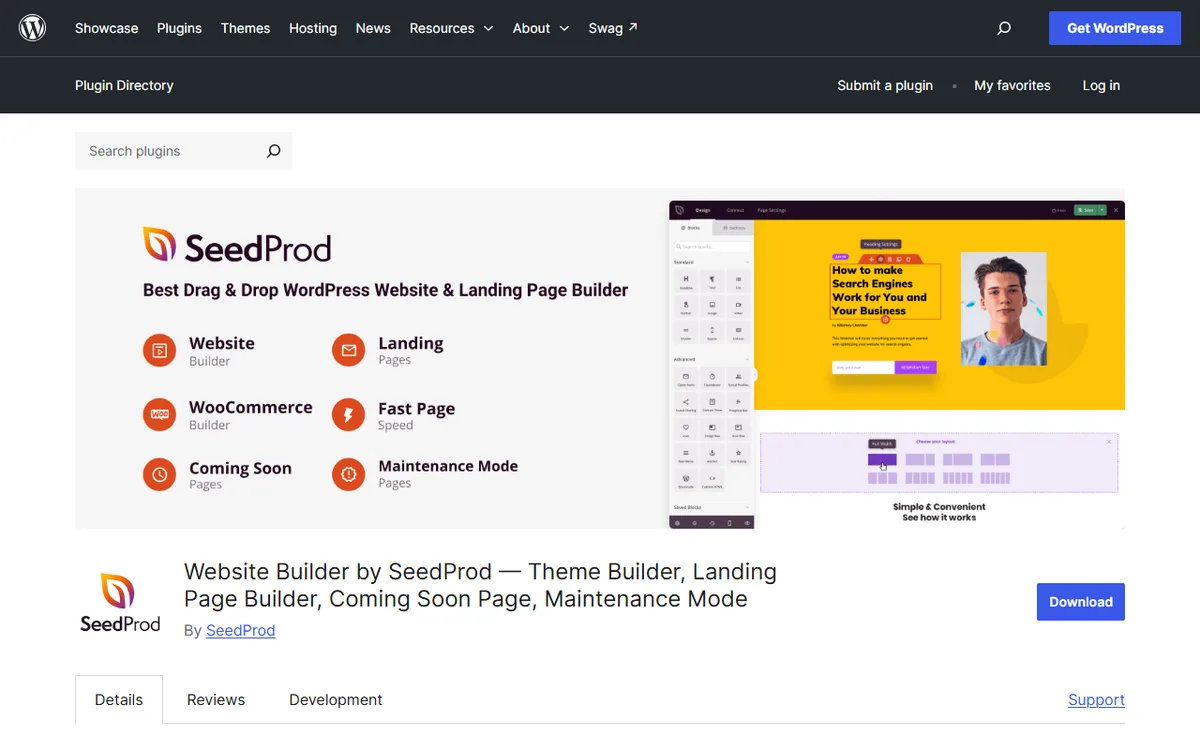
You can get the free version from the WordPress plugin directory, and a Pro version is also available. Install and activate the plugin on your WordPress website. See our SeedProd pricing guide for the Lite installation steps.
If you purchased a paid plan, sign in to your SeedProd member dashboard, download the SeedProd Landing Page Pro plugin ZIP file, and copy your license key. In WordPress, open Plugins, then Add New, click Upload Plugin, choose the ZIP, click Install Now, and then click Activate Plugin. Enter the key in the license field and click Verify Key. You can find it again under SeedProd, then Settings, then License Key.
Two quick notes. Staging and local sites do not count toward the license activation limit when their domain includes local, test, staging, dev or .wp, so you can start by building on a staging copy. If Safari automatically unzips the download, go to Safari, then Preferences, then General and clear Open safe files after downloading.
Build and turn on a coming soon page
- In the WordPress admin, go to the SeedProd Dashboard and click Set Up a Coming Soon Page beside the Coming Soon Mode toggle.
- Select a Coming Soon page template to import, or choose a blank template to build from scratch. To select a template, hover over its thumbnail and click the checkmark icon.
- Use the drag-and-drop builder to customize the page. The documentation names branding, a countdown timer and an email opt-in form as options, and also mentions a Contact Form block and a Connect tab for an email marketing service.
- Select Save in the top-right corner, then click Publish.
- Go back to the SeedProd Dashboard and turn on Coming Soon Mode. Visitors who are not logged in to WordPress will see the live page.
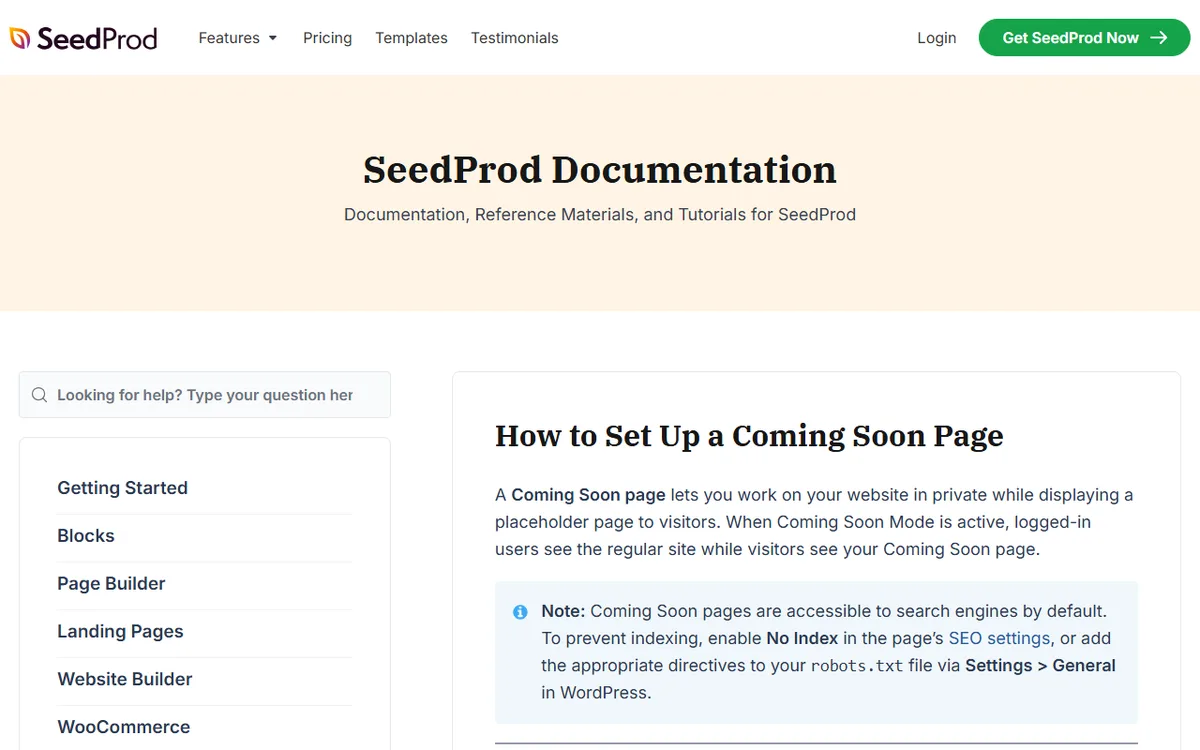
You can customize templates live without code, including the background image, fonts, colors and CSS. The page states that coming soon pages work fully on mobile and lists blocks such as Optin Form, Countdown Timer, Giveaway, Pricing Table, Social Media, Contact Form and FAQ. You can also import or export a page with one click to reuse it on other pages or client projects.
Control who can see the site
To let a client or teammate preview the page, set a Bypass URL. Edit the Coming Soon or Maintenance page, open Page Settings, then Access Controls, type a secret phrase in the Bypass URL field, copy the full bypass URL SeedProd creates below the field, share it, then select Save. SeedProd logs people who use it in as a generic user without privileges.
To add a password form, place the shortcode [seed_bypass_form] in a text block. The passphrase you entered in the Bypass URL field also works as the form password. If the Bypass URL does not work with your hosting, SeedProd recommends enabling the Bypass Cookie option, which is suitable for sites that are not heavily cached.
Search engines and the coming soon page
Search engines can access coming soon pages by default. To stop indexing, turn on No Index in the page's SEO settings, or add the correct directives to robots.txt through Settings, then General in WordPress.
Turn on maintenance mode
A Maintenance Mode page temporarily keeps visitors from seeing the site while you make updates, without taking the site fully offline. SeedProd sends search engines a 503 status code, while logged-in users continue to see the regular site.
- From the SeedProd Dashboard, select Set Up a Maintenance Mode Page next to the Maintenance Mode toggle.
- Choose a Maintenance Mode template to import or start with a blank one, customize it in the drag-and-drop builder, then select Save and click Publish.
- Go back to the Dashboard and turn on Maintenance Mode. Visitors who are not logged in will see the live page.
- To include or leave out certain URLs, select Page Settings, then Access Controls, then Include/Exclude URLs.
Use it for brief jobs. The WordPress.org listing says maintenance mode is meant for short term maintenance on an existing site, and the 503 tells search engines to come back in 1 day.
What the free version leaves out
The WordPress.org listing says the free version lets you build landing pages, Coming Soon pages and Maintenance Mode pages, and includes a range of Coming Soon Page and Maintenance Mode templates. That means you do not need to pay for the pages in this guide.
The paid version includes the other features. The listing says Pro lets you create 404 pages and login pages, offers WooCommerce and eCommerce integration, and lets you create your entire website and WordPress theme. The pricing page says every plan can create Coming Soon, Maintenance, 404 and Login pages.
SeedProd's pages do not clearly explain which coming soon features are included in the free version and which require a paid plan, other than the features listed above. If you need a particular feature such as the bypass settings or the Include/Exclude URLs control, check for it in the plugin before you buy. The pricing page lists Basic, Plus, Pro and Elite at regular prices of $79, $199, $399 and $599 for the paid plans.
When the page does not show
Go through these checks in order.
- Is it active? The page must be switched to Active before it appears to visitors for Coming Soon, Maintenance Mode, Login and 404 pages.
- Is it published? A landing page that is not visible to logged-out visitors may still be a draft. Select the Save dropdown arrow in the editor, then choose Publish.
- Are you logged in? People who are logged in see the regular site, so check using a logged-out browser or a private window.
- Is it a cache? When changes in the editor do not show up on the site, a caching layer is almost always the cause.
SeedProd describes three caching layers. For WordPress cache, go to your caching or optimization plugin's settings and select Purge or Clear Cache. You can also briefly turn off the plugin to check whether it is causing the issue. For server cache, find a clear-cache option in your hosting control panel or contact your host's support team. For browser cache, press Ctrl+Shift+R on Windows or Linux or Cmd+Shift+R on a Mac, or view the page in a private window.
The reverse is also true. If you turned off the Coming Soon plugin and the page still appears, the WordPress.org listing says the cause is always a WordPress caching issue and instructs you to clear the cache in your caching plugin's settings.
Turning it off at launch
Once the site is ready, go back to the SeedProd Dashboard and switch Coming Soon Mode off. To return the site to normal, switch Maintenance Mode off.
Next, clear any caches so visitors can see the live site, following the steps in the section above. Visit the site in a private window to check that the placeholder page is gone.
If you are still planning the build, how to build a website with WordPress covers the complete setup, and the SeedProd vs Elementor comparison can help if you are still deciding on a builder.
Sources
- Setting Up a Coming Soon Page
- Coming Soon or Maintenance Mode
- Coming Soon plugin at WordPress.org
- Maintenance Mode Page docs
- How to Install and Activate the Pro Plugin
- Builder for Coming Soon Pages
- URL Bypass and Password Protection
- SeedProd Pricing
- Tips for Quick Troubleshooting
- Changes Not Showing Online
Frequently asked questions
How do I turn on a SeedProd coming soon page?
Go to the SeedProd Dashboard, click Set Up a Coming Soon Page, select and edit a template, save and publish it, then turn on Coming Soon Mode.
What is the difference between coming soon and maintenance mode?
Coming soon mode returns a 200 status and allows search engines to index the page while the site is being built. Maintenance mode returns a 503 status and is intended for brief work on an existing site.
Is the SeedProd coming soon page free?
The WordPress.org listing states that the free version lets you create coming soon, maintenance mode and landing pages, and includes a range of templates.
Why is my SeedProd coming soon page not showing?
Make sure the mode is set to Active and the page is published. Keep in mind that logged-in users see the regular site, and clear the WordPress, server and browser caches.