
Create a QR code for your Wix site address by choosing a content type, entering the address, styling the code, and clicking Download QR Code in Wix's free generator, part of Wixel. Before downloading, log in or create a free Wixel account.
Once you have the code, it is a static image. Upload it to your site, print it, or share it. This guide walks through each step, design options, file formats, print size, tracking, and common reasons a code may not scan.
What the Wix QR code generator is
A QR (Quick Response) code is a kind of barcode. A smartphone camera or scanner app reads it and opens the content it contains, such as a web page, a PDF, or an email draft. Wix says it can make ordering faster by taking people directly to a menu, connect guests to WiFi, or direct visitors to a sign-up form.
Wix’s generator is part of Wixel, the company’s design tool, and is separate from its website editor. You can use it without a Wix website, so a code can point to any address, including a page on your own Wix site. If you are still setting up your site, begin with our guide on building a website with Wix.
How to create a QR code with the Wix generator
The steps are based on the Wix Help Center article and the Wixel generator page.
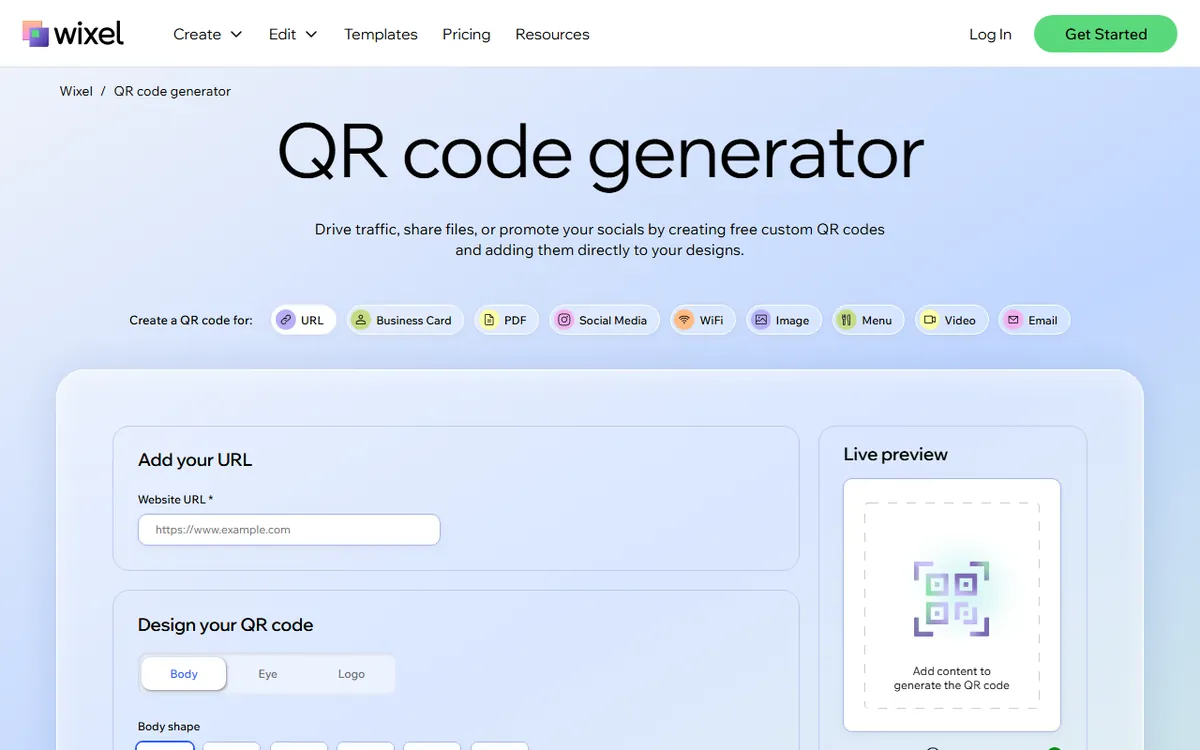
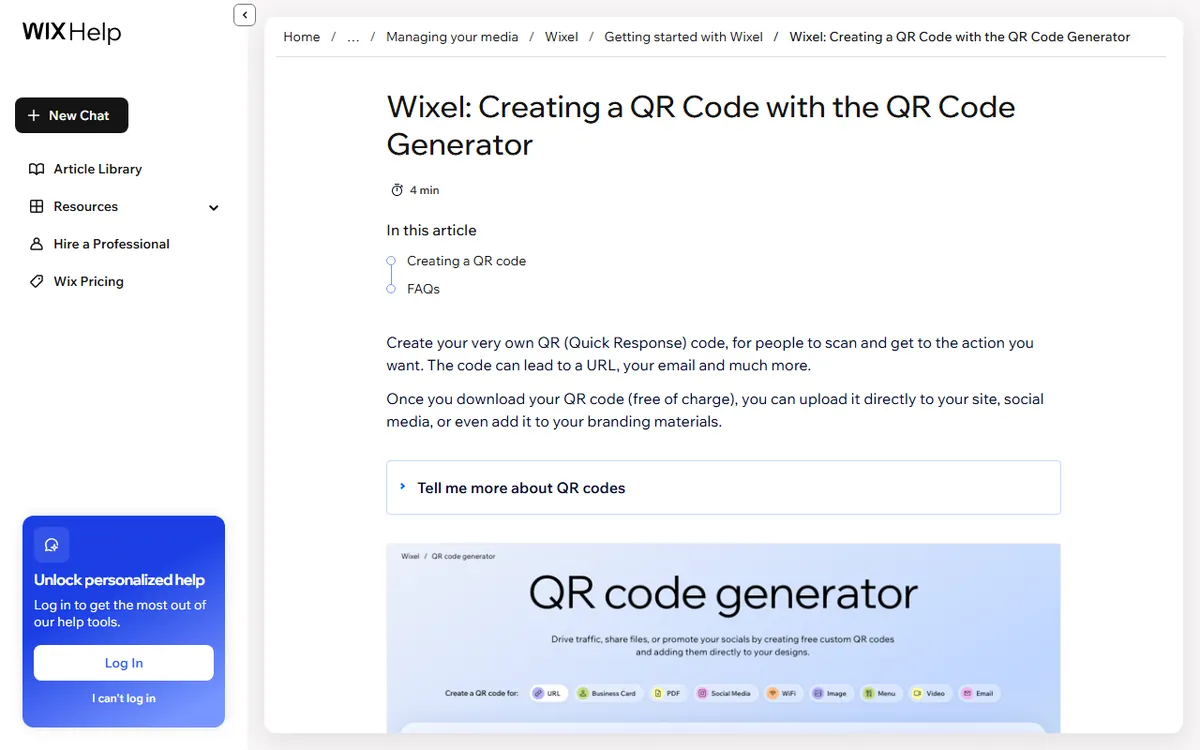
- Go to the QR code generator and choose a content type, such as URL, PDF, or WiFi.
- Enter or upload the information. For a website, paste the complete address for your home page or the specific page you want people to visit.
- Style the code using the options described in the next section.
- Look at the contrast level indicator below the preview. A green checkmark shows that the colors you chose should scan reliably.
- Test the preview by scanning it with your own phone.
- Click the edit icon beside File name, enter a name, then select a format and export size.
- Select Download QR Code, then sign in to your Wixel account or create one. Once you sign in, the file downloads to your computer.
You can change the destination in the generator before downloading, so you can test different destinations as you decide. After download, the file is fixed, as the tracking section explains.
Pick the right content type
Wix offers nine content types. Select the one that fits what you want people to do after scanning.
- URL: directs people to your site, a landing page or any web address.
- Business Card: allows people to save your name, title, email and phone with one scan.
- PDF: lets you share a price list, brochure or form without printing copies.
- Social Media: directs people to an Instagram, TikTok or another account.
- WiFi: gives guests access to your network without sharing the password.
- Image: links to a photo, poster or artwork.
- Menu: displays a menu on a diner's phone at the table.
- Video: plays a product demo, site tour or promo clip.
- Email: starts a new email addressed to you.
For a Wix site, a URL code opens a page you control, making it a suitable choice. A WiFi code contains your network details, so use care when displaying it in public places where anyone could join the network.
Style the code without breaking it
The generator provides three sets of design controls.
- Body: select a shape (square, dots, rounded, extra-rounded, classy or classy-rounded), a foreground color and a background color. Select Enable foreground gradient to blend two foreground colors.
- Eye: select a border style and a center style for the three corner squares, along with a color for each.
- Logo: choose a logo from the list or click Upload custom logo to add your own.
Style changes can make a code more difficult to read. Keep the foreground clearly dark against a light background, and use the contrast indicator as a guide. If the checkmark is not green, adjust the colors before downloading. A logo covers part of the pattern, so check the preview again after adding one.
Choose a file format and size
Wixel provides three formats. PNG supports transparency, JPEG creates a smaller file, and SVG is a vector format. Export sizes are Small, Medium and Large.
For anything you print, use SVG or the Large size, since vector files and large images stay sharp when enlarged. A Medium PNG works for a web page. Wix says the downloaded code has no watermark and Wixel checks contrast and resolution for you.
| Use | Suggested format | Why |
|---|---|---|
| Your Wix web page | PNG | Supports transparency and loads quickly at Medium size |
| Flyers, posters, menus | SVG or Large PNG | Stays sharp when printed at larger sizes |
| Email or social posts | JPEG | Smaller file size |
Add the QR code to your Wix site
A QR code on your own site helps laptop visitors open a link on their phone. You can also display a code that opens a PDF, a menu or a WiFi connection. Wix says you can upload the downloaded code straight to your site.
- Open your site using the Wix Editor.
- Upload the QR code image to the Media Manager. Wix explains how to upload images of your own, and the Media Manager stores them all in one place.
- Place the image on the page, then adjust its position and size so it is big enough to scan.
- Go to the image settings and add a description in the alt text field. For instance, "QR code that opens our menu".
- Publish your site, then scan the code with a phone to make sure it works.
Alt text is important for people using screen readers. Wix discusses it in its guide to alt text for images. For broader accessibility steps, read our guide to making a website ADA compliant.
Print and place the code so it scans
Wixel lists 0.8 by 0.8 inches (2 by 2 cm) as the smallest print size for a code scanned up close. Use a larger size when people scan from farther away, like from a poster or shop window. Keep a blank margin around the code, place it on a plain area and do not stretch or crop it.
Before ordering a large print run, test the printed copy with more than one phone, not just the screen version. Folds, glare, curved surfaces and poor quality paper often cause scans to fail.
Tracking, expiry and changing a code
Wix addresses three questions in its help article.
- Expiry: codes do not expire. They stop working only when the destination address is changed or deleted.
- Scan limit: there is no limit to how many times a code can be scanned.
- Scan counts: the generator currently cannot track how many times a code has been scanned or clicked.
A downloaded code is a static image, so it cannot be changed after you download it. If the destination changes, make and download a new code. For some measurement, add UTM parameters to the address before generating the code. Google explains how to create campaign links in its URL builder help. This shows visits to your site through the code in Google Analytics. It does not count scans that did not load the page.
Since the code points to a fixed address, keep that page live. If you redesign the site, keep the old address working or redirect it. Our Wix free plan guide explains why the address of a free site can be important here.
Sources
- Wix Help Center: Wixel, creating a QR code with the QR code generator (steps, content types, expiry, scan limit, tracking)
- Wixel QR code generator (design choices, formats, export sizes, no watermark)
- Wix Help Center: uploading your own images (adding the image to your site)
- Wix Help Center: about the Media Manager (where uploaded files are stored)
- Wix Help Center: image alt text (describing the code)
- Google Analytics Help: URL builders (campaign tracking parameters)
Frequently asked questions
Is the Wix QR code generator free?
Yes. Wix calls the generator free and says downloads have no watermark. You must log in or create a free Wixel account to download the file.
Do Wix QR codes expire?
No. Wix says QR codes do not expire and have no scan limit. The code works only as long as the web address it points to is not changed or deleted.
Can I see how many people scanned my Wix QR code?
Not within the generator. Wix says scan counts are not available right now. One common workaround is to add UTM parameters to the web address, which lets visits appear in Google Analytics.