
There is no official ADA certificate or badge. The practical goal is to meet WCAG Level AA, the W3C's accessibility guidelines, by addressing image descriptions, color contrast, headings, keyboard access, forms and captions.
This guide describes what the ADA does and does not say about websites and outlines practical steps for people who use a website builder. If you receive a demand letter or face a lawsuit, speak with a lawyer who handles ADA cases.
What the ADA says about websites
The Americans with Disabilities Act applies to state and local governments under Title II and to businesses open to the public under Title III. The two are handled differently.
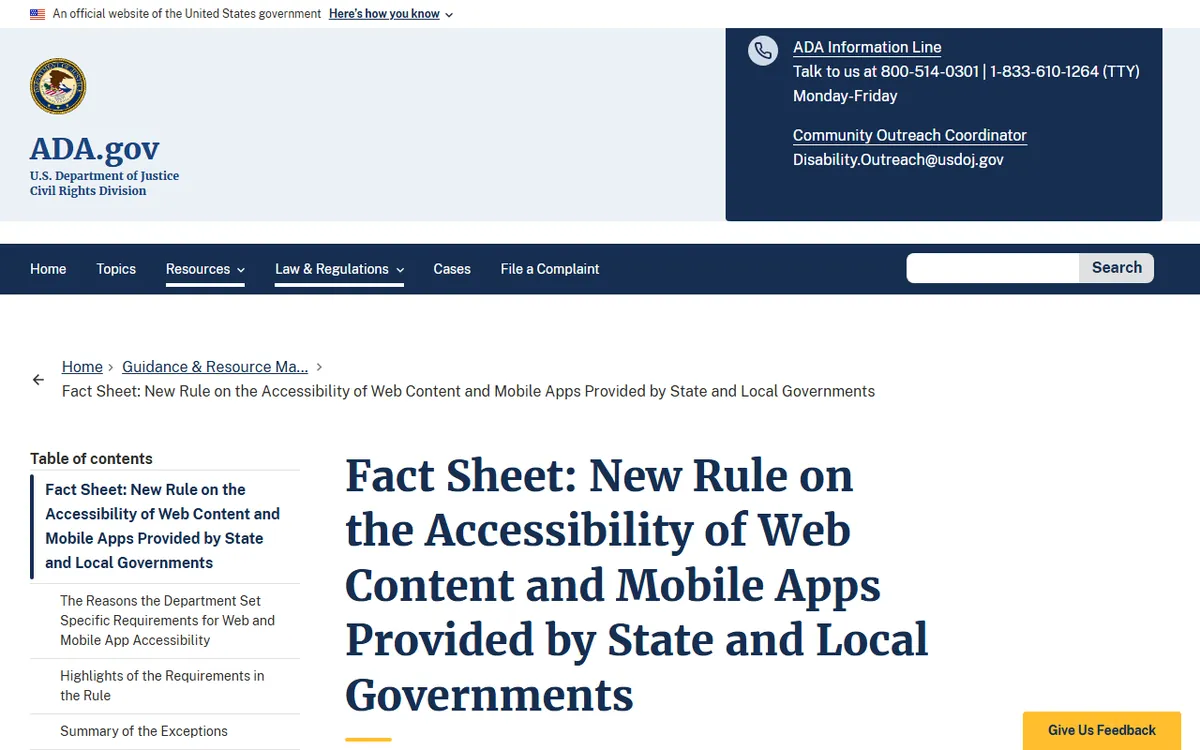
- Title II, state and local governments: in 2024, the Department of Justice issued a rule setting WCAG 2.1 Level AA as the technical standard for their websites and apps. A 2026 interim final rule changed the deadlines. Entities serving 50,000 or more people must comply by April 26, 2027. Smaller entities and special district governments have until April 26, 2028.
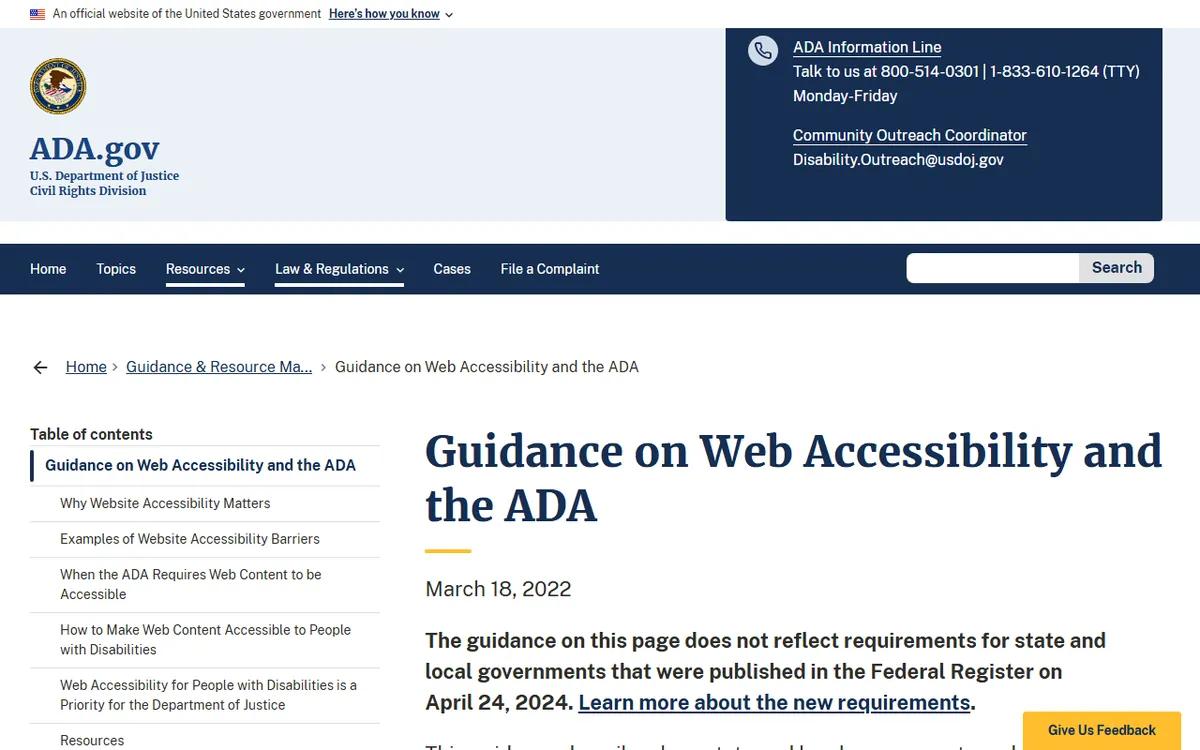
- Title III, businesses: DOJ's current web guidance says no regulation sets detailed technical standards for these sites. The 2024 technical rule applies to Title II, not private businesses.
This does not mean businesses can disregard the issue. The ADA's general duty not to discriminate still applies, and people use WCAG to measure a site's accessibility. For the exact wording, read the DOJ's own web accessibility guidance and its fact sheet on the Title II web rule. The guidance page has an older date and a notice saying it does not reflect the 2024 Title II requirements.
WCAG Level AA is the practical target
WCAG, from the W3C, stands for Web Content Accessibility Guidelines. It groups accessibility into four principles: content must be perceivable, operable, understandable and robust. WCAG has three levels, A, AA and AAA. The DOJ's Title II rule requires AA.
WCAG 2.2 is the W3C's latest Recommendation. The W3C says content conforming to 2.2 also conforms to 2.1 and 2.0, so aiming for 2.2 AA gives up nothing. It added nine success criteria and removed 4.1.1 Parsing. The new Level AA criteria are Focus Not Obscured (Minimum), Dragging Movements, Target Size (Minimum) and Accessible Authentication (Minimum). See the full list in the W3C's summary of what is new in WCAG 2.2.
The 2026 WebAIM Million report found detectable WCAG 2 failures on 95.9% of the top one million home pages it scanned. Automated scans catch only some issues, so the real number may be higher.
Fixes you can make in any builder
You will handle most of these in your builder's page editor, image settings and theme settings. Menu names vary across Wix, Squarespace, WordPress and other tools, so look for the same options under your own labels. Our guide to building a website without code explains the editors in more detail.
Write alt text for every meaningful image
Alt text is a brief description that screen readers speak aloud. Explain what the image shows in the page’s context, such as "Baker taking a tray of sourdough loaves out of an oven". For an image used only for decoration, most builders let you mark it as decorative or leave the description blank so screen readers skip it. Do not fill the field with keywords.
Check color contrast
WCAG Level AA requires a contrast ratio of at least 4.5 to 1 for regular text and 3 to 1 for large text. Large text is at least 18 point regular or 14 point bold. Visual details needed to identify buttons, form fields and their states, and parts of graphics needed to understand content, must have at least 3 to 1 contrast against nearby colors, with some exceptions. Check your brand colors with a free contrast checker, and do not use light gray text on white.
Also, do not rely on color alone to communicate meaning. A red outline around an error field should be paired with text explaining what is wrong.
Use real headings in order
Use the builder’s heading styles for headings instead of bold text. Set one main heading on each page, then place subheadings beneath it in order. Screen reader users navigate pages by headings, so skipping levels or using headings just to change text size makes a page difficult to navigate.
Make everything work with a keyboard
Open your site and press the Tab key. You should be able to reach every link, button and form field in a sensible order, see a clear outline around the focused item, and open menus without a mouse. WCAG 2.4.1 also calls for a way to skip repeated content, and a "skip to main content" link is a common solution. If a pop-up traps focus or a menu opens only when you hover, change or replace that element.
Add captions and descriptions to video and audio
WCAG 1.2.2 (Level A) requires captions for prerecorded video that includes sound. Captions should include speech and meaningful sounds, such as identifying who is speaking. Level AA also requires audio description for prerecorded video to explain important visuals that the soundtrack does not describe. Include a transcript for audio-only content as well. Have a person review auto-generated captions before relying on them.
Label forms and explain errors
Each field needs a visible label, and required fields should be identified with text, not just color. WCAG 3.3.2 calls for labels or instructions when content requires input, and 3.3.1 requires automatically detected errors to be identified and explained in text. A CAPTCHA that relies only on a puzzle can block some users. WCAG 2.2 adds Accessible Authentication, so avoid login steps that require remembering or solving something without an alternative.
Write link text that makes sense alone
Use "Read our returns policy" rather than "click here". Screen reader users often bring up a list of links, and a list of "click here" links is useless.
How to test your site
- Keyboard test: navigate every key page using only Tab, Shift+Tab, Enter and Space.
- Automated scan: a free checker can flag missing alt text, empty links and low contrast. It identifies only some of the problems.
- Screen reader check: use a free screen reader to listen to your home page and a form, then check whether they make sense.
- Zoom and mobile: enlarge the page to 200% and open it on a phone. Text should remain readable, and nothing should be cut off.
- Review after changes: run the checks again whenever you add a page, theme or plugin.
The W3C's guidance on testing and evaluating accessibility describes these methods in greater detail.
Be careful with overlays and "one-click" tools
Many products claim a widget or badge will make your site instantly compliant. No tool can guarantee that. Automated checks find only some issues, which is why the WebAIM report notes that errors may go undetected after a scan. A widget will not add missing alt text to your content, label a form with no labels or make a menu reachable by keyboard.
Use automated tools to identify problems, then fix the page itself. For a formal opinion, hire an accessibility auditor, since a tool's badge is not evidence in a legal dispute.
A 30, 60 and 90 day plan for a small site
- First 30 days: improve contrast, add alt text to your main pages, fix headings and test keyboard navigation through your menu and contact form.
- By day 60: include captions and transcripts, label all form fields and improve link text.
- By day 90: review PDFs and downloads, provide visitors with a way to report a barrier, such as an email address, and write down your publishing checklist.
Accessibility requires ongoing attention. New images, pages and plugins can create problems, so include checks in your publishing process. If you have not picked a builder yet, our website builders overview is a good starting point, and the free business website guide explains the limits of free plans.
Sources
- ADA.gov: web accessibility guidance and the ADA (Title III position)
- ADA.gov: fact sheet about the Title II web rule (WCAG 2.1 AA for state and local governments)
- Federal Register: extended compliance dates for the Title II web rule (2027 and 2028 deadlines)
- W3C: Web Content Accessibility Guidelines 2.2 (success criteria for contrast, captions, forms, bypass blocks)
- W3C: what’s new in WCAG 2.2 (new and removed criteria)
- W3C: evaluating and testing accessibility (test methods)
- WebAIM: the WebAIM Million (2026 home page failure rate)
Frequently asked questions
Is there an official ADA certification or badge for my website?
The ADA does not provide website certificates, and no tool or badge can guarantee compliance. Consider a badge a claim, not proof, and assess the site by testing it against WCAG.
Which WCAG version should I follow?
WCAG 2.2 is the latest W3C Recommendation and also conforms to earlier versions. The DOJ rule for state and local governments specifies WCAG 2.1 Level AA, so if you are unsure, aim for 2.2 AA.
Do I need to fix PDFs and videos too?
Yes, PDFs and video need attention too. WCAG requires captions for prerecorded video with sound and audio description at Level AA. A PDF people need to read should be made accessible or provided in an accessible format.