
Shopify takes care of hosting, the content delivery network, caching and compression. You control three things: your apps, images and theme.
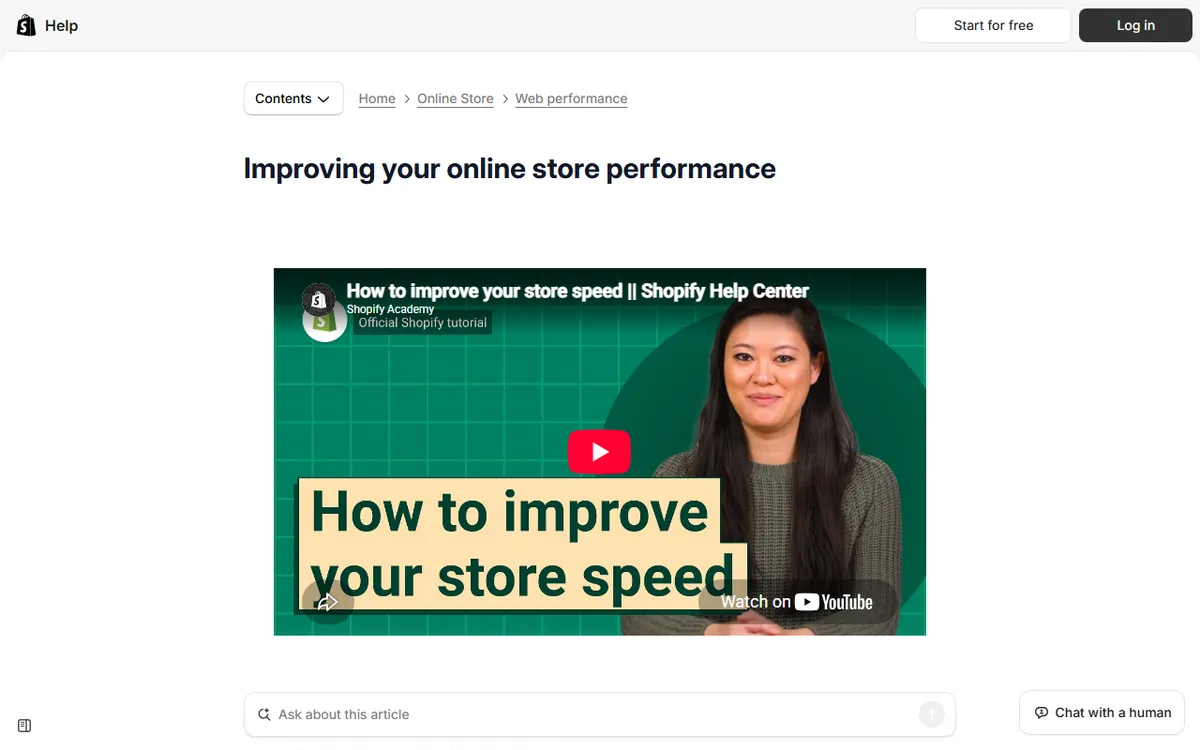
This guide follows the steps in Shopify's official performance documentation: confirm the issue, find the cause, then act. Each step uses settings you can access without writing code.
What Shopify already optimizes for you
Before making changes, know what you can leave alone. Shopify's documentation lists several things that require no action from you:
- Fast global servers with no bandwidth limit, along with a content delivery network managed by Cloudflare.
- An image CDN that delivers appropriate formats, resized and compressed.
- HTTP/2 and browser caching set to one year for resources that can be cached.
- Gzip compression and minified CSS and JavaScript.
If a speed checker tells you to change server settings, a CDN or compression, check Shopify documentation before acting, because Shopify says that advice often does not apply to Shopify stores.
Step 1: Measure with the Web performance reports
Shopify's Web performance reports use Core Web Vitals to show how actual visitors experience your store. Check two places:
- The performance summary on the Themes page (Online Store in your admin), where you can choose Today, Last 7 days or Last 30 days.
- Open Analytics, then Reports, to view the full reports. Search for "Largest Contentful Paint", "Interaction to Next Paint" or "Cumulative Layout Shift". A colon search displays all web performance reports.
You need the Reports staff permission, and the store must not be in private mode to collect real user data. Shopify says data may take up to 36 hours to appear and is kept for 90 days, so a change made an hour ago will not show yet. New stores may not have any metrics.
Shopify's thresholds for each metric are listed below. Results show the 75th percentile of real visits over the past 30 days.
| Metric | What it measures | Good | Moderate | Poor |
|---|---|---|---|---|
| Largest Contentful Paint (LCP) | Loading speed | 2500 ms or less | Above 2500 ms, below 4000 ms | Above 4000 ms |
| Interaction to Next Paint (INP) | Responsiveness | 200 ms or less | Above 200 ms, below 500 ms | Above 500 ms |
| Cumulative Layout Shift (CLS) | Visual stability | 0.1 or less | Above 0.1, below 0.25 | 0.25 or more |
Follow this order when using the reports. Look at the summary for any Moderate or Poor metric, check the Over Time report to see when it changed, then review the Page Type and Page URL reports to identify the templates or pages responsible. The Over Time chart marks store changes, such as app installs and theme updates, which often point directly to the cause.
Step 2: Verify the problem on real devices
Reports may be delayed, and one slow moment does not make a trend. Shopify advises testing your store on different devices and connections, and asking other people to test it too, so you can rule out your own internet connection. Then run PageSpeed Insights on the page that seems slowest.
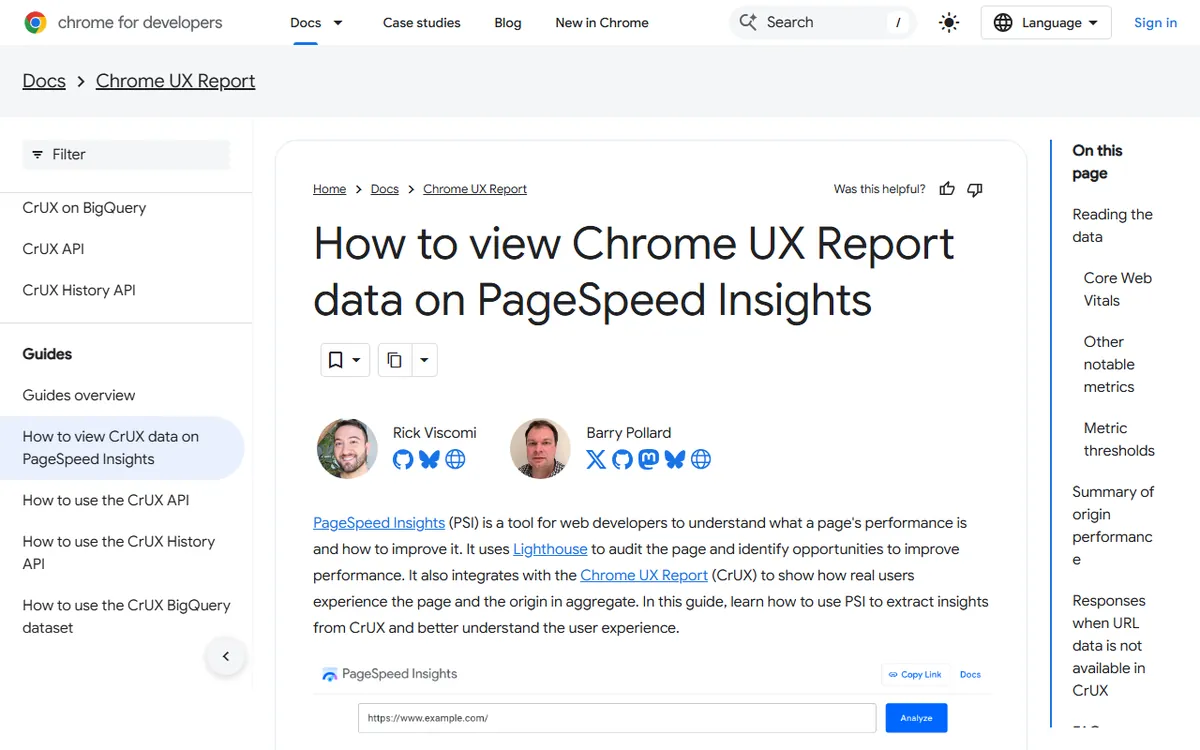
PageSpeed Insights displays real-user data from the Chrome User Experience Report alongside lab diagnostics. Treat the real-user data as the figure that matters and the lab data as a clue about causes. Start with the mobile tab, because problems show up sooner on phones with slower connections.
Shopify also notes that during high-traffic events, monitoring tools may show a store as slow or down even when real customers experience good performance. Do not react to a single bad reading from one of these tools.
Step 3: Audit your apps and third-party code
Shopify's first recommendation for slow stores is to remove apps that are not essential for sales, since too many apps loading assets can slow a store. For each app, consider whether it provides enough value to make up for its speed cost.
Go through this checklist:
- Make a list of every installed app and what it does for you.
- Delete apps you no longer use or that provide little value.
- Check your theme's code or ask the app developer how to remove it, since uninstalling an app may leave its code in your theme.
- Open your tag manager and remove unused or low-value tags.
- Run the Web performance reports again after a few days and compare the results.
Shopify says theme app extension blocks are automatically removed when you uninstall such an app, though other apps may leave code behind. Before editing theme files, ask the developer for complete removal instructions. First, duplicate your theme to make a backup so you can undo any mistakes.
When picking a new app, the Built for Shopify badge means the app has met Shopify's standards, including performance requirements. It does not guarantee the app will work well for your store, so test it after installation. Our guide to Shopify store costs also explains how apps increase your monthly spending.
Step 4: Resize and reduce your images
Shopify notes that pages with many high-quality images may load slowly. Optimize the images or display fewer. Shopify recommends JPG for photos and PNG for graphics that need transparency, and resizing images to the dimensions at which they appear.
For product images, Shopify's product media page says that square images measuring 2048 by 2048 pixels usually display best. It sets a maximum of 5000 by 5000 pixels, with each file under 20 MB. Files much larger than needed offer no visible benefit, so resize photos from a camera or phone before uploading them.
Shopify's image CDN automatically serves images in a suitable format, and browsers that support newer formats may receive WebP or AVIF. So, you do not need to convert every image yourself. Avoid oversized originals and placing dozens of large images on a single page.
Step 5: Check your theme and page layout
Shopify recommends using a current, optimized theme. It describes its Horizon themes and Shopify-built Online Store 2.0 themes as free and optimized for web performance, and its Themes page includes a theme performance data table. Actual speed still depends on your theme version, apps and customizations.
Run these theme checks:
- Reduce sections. Shopify says having many sections on page templates can hurt performance.
- Check animations. If your theme includes page transitions or animations, compare performance with them enabled and disabled.
- Enable pagination. For collections with many products, pagination limits the number that loads at one time.
- Think about switching. If your theme significantly slows things down, a performance-optimized theme may make a better base.
Read our guide to Shopify store design for advice on balancing appearance and speed. Refer back to the fewer sections check above.
Match the fix to the metric
Each Core Web Vital signals a different type of problem. This table, based on Shopify's guidance, summarizes where to start looking.
| If this is Moderate or Poor | Look first at |
|---|---|
| LCP (slow loading) | Large hero images, many images on the page, slow scripts, theme animations |
| INP (slow response) | Too much JavaScript from the theme, apps or tag managers |
| CLS (layout jumps) | Elements that load late and push content around, such as banners and app widgets |
Shopify's documentation says poor INP usually indicates too much JavaScript from the theme, apps or tag managers. For LCP and CLS, it directs developers to separate guides for troubleshooting slow loading and layout shift in Liquid storefronts. The other rows above are practical places to start, not a diagnosis, so verify each one with the Page Type and Page URL reports.
Common mistakes to avoid
- Trying for a perfect lab score. A PageSpeed score offers a hint. Real-user data in the reports shows whether visitors have a good experience.
- Evaluating one page. Shopify says occasional Moderate or Poor pages or dates are usually not a concern if the overall metric is Good.
- Changing several things at once. If you change apps, images and theme at the same time, you will not know what made a difference. Change one thing, then wait for the data.
- Expecting results right away. The reports use 30 days of visits, and stores with low traffic can switch to weekly or monthly grouping to reduce noise.
- Expecting a jump in sales. Google says Core Web Vitals are among several signals in its ranking systems, and good scores do not guarantee top rankings. Track your own conversion rate before and after making a change.
When to get help
Shopify offers different advice based on the cause. If you use a free Shopify theme, Shopify Support might help with basic performance improvements. If you use a third-party theme, contact the theme developer, a Shopify web performance expert or a Shopify Partner. If an app is causing the problem, contact the app developer.
If you are comparing platforms before committing, our overview of website builders explains what each type takes care of for you.
Sources
- Shopify Help Center: Improving web performance (troubleshooting steps, guidance on themes and apps, what Shopify optimizes)
- Shopify Help Center: Web performance reports (where to find reports, thresholds, data delay)
- Shopify Help Center: Product media (suggested and maximum image sizes)
- Shopify Help Center: Theme images (image formats applied automatically)
- Shopify Help Center: Uninstalling apps (app code left behind)
- Shopify Help Center: How to find and choose apps (Built for Shopify badge)
- PageSpeed Insights (testing pages)
- Chrome UX Report: PageSpeed Insights (PageSpeed Insights data from real users)
- Google Search Central: Page experience (Core Web Vitals and search ranking)
Frequently asked questions
How do I know if my Shopify store is slow?
In your Shopify admin, open Analytics, then Reports, and review the Largest Contentful Paint, Interaction to Next Paint and Cumulative Layout Shift reports. Investigate any Moderate or Poor ranking. Also test using different devices and connections.
Will improving speed really increase my sales?
Shopify does not guarantee that speed work will increase sales, and Google does not either. A faster store can improve the visitor experience, but measure your own conversion rate before and after making a change.
Can I improve Shopify speed without hiring a developer?
Yes, for the most common issues. You can remove apps you don't need, resize images, limit sections, enable pagination and tidy up your tag manager without code. If the issue is with a third-party theme or app, Shopify directs you to contact its developer.