
Squarespace automatically handles the sitemap, SSL and structured data. You need to take care of four other tasks, each covered below: page titles and descriptions, connecting Google Search Console, redirects when URLs change, and hiding pages that should not appear in search.
You do not need to upgrade your plan for standard SEO, since all current plans include Squarespace's SEO tools and search keyword analysis. This guide covers each step in the order most people need.
Where the SEO tools are
From the current main menu, select Website, then SEO/AI Visibility. You will find Squarespace's search tools there, including the SEO report. Squarespace maintains an SEO checklist in its help center, which you can follow as a list. Its SEO page outlines a setup checklist.
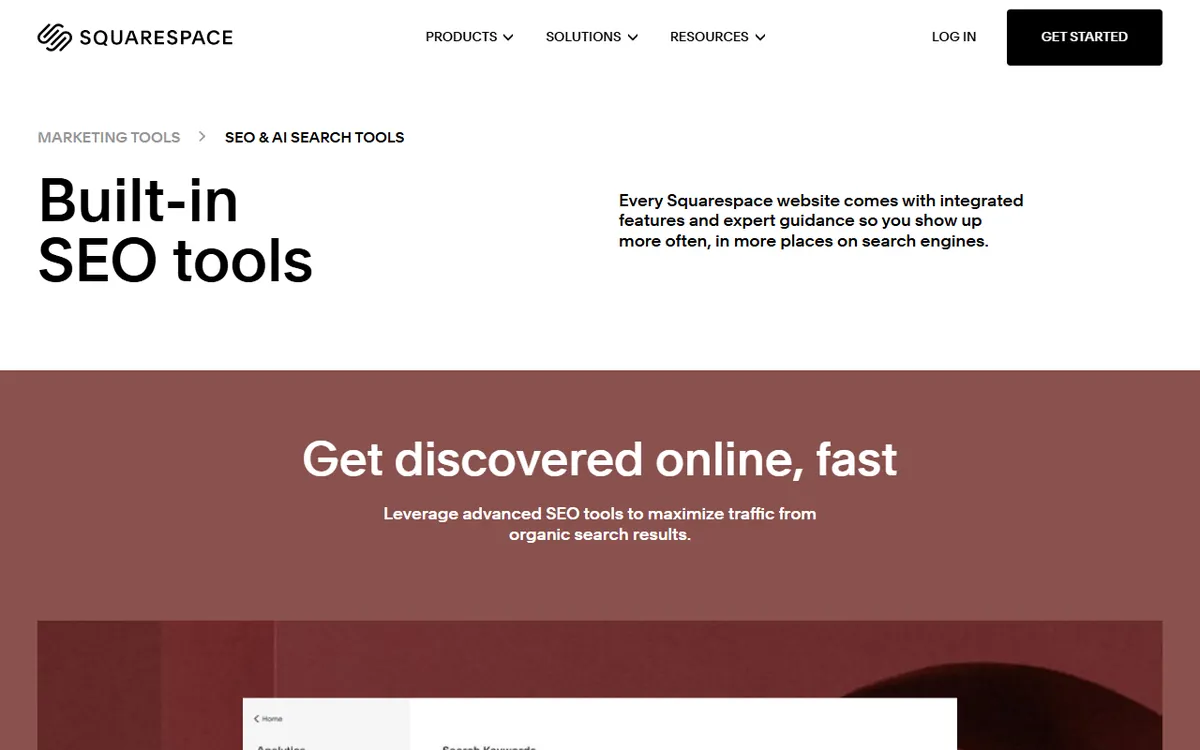
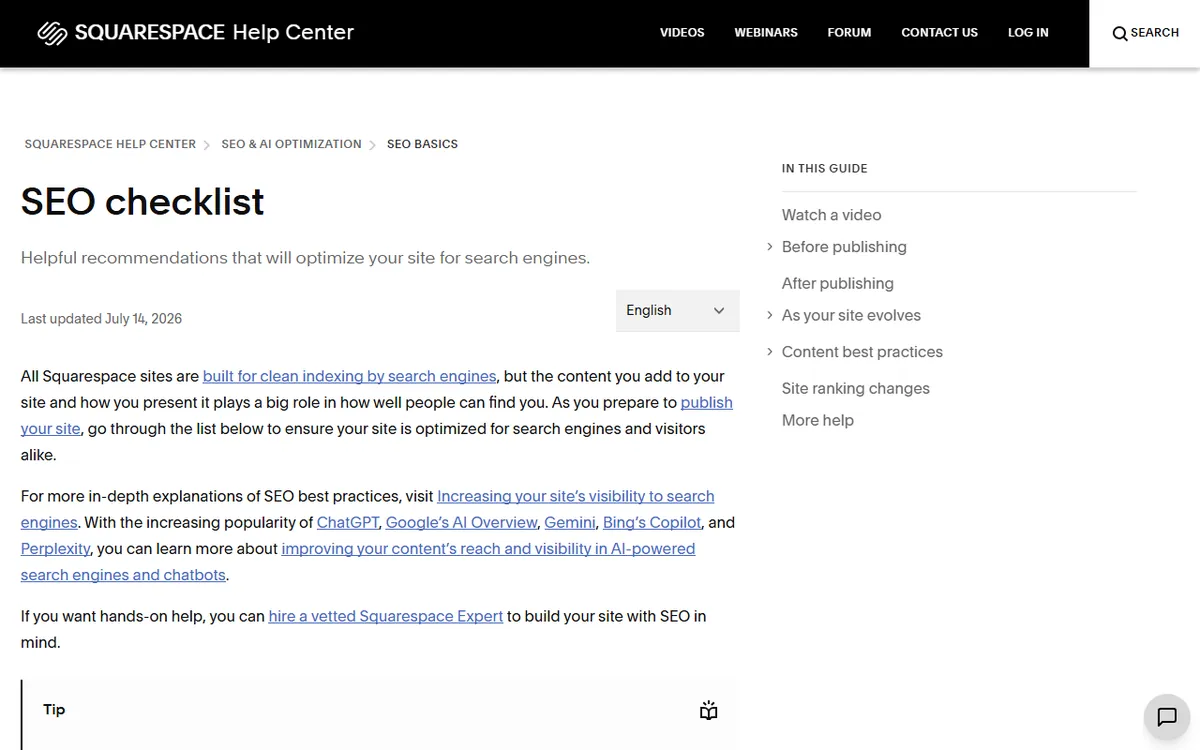
Squarespace changes menu names as it updates the interface, so use these paths as a guide and follow the current help article if a label is different.
Write page titles and descriptions
Each page has an SEO title and an SEO description. Searchers often see these in results.
| Field | Squarespace recommends | Field limit |
|---|---|---|
| SEO title | 70 characters or fewer | 100 |
| SEO description | 50 to 300 characters | 400 |
Squarespace says search engines may shorten descriptions at around 160 characters, so lead with the key point. Create a unique title and description for each page. See the help articles about editing page titles and adding SEO descriptions.
Connect Google Search Console
First, publish the site, remove any homepage password and check that a third-party domain is connected properly. Squarespace advises waiting 48 hours after connecting a third-party domain before verifying it. This connection does not work on a trial site.
- Select Analytics.
- Select Search keywords.
- Select Connect.
- Log in to the right Google account.
- Check the permissions, then click Allow.
- Allow up to 72 hours for keyword data to show up.
Squarespace confirms the primary domain. Find the complete instructions in the Search Console help article.
Check the sitemap
Squarespace updates your sitemap automatically, so making one is not necessary. The sitemap address is usually https://yourdomain.com/sitemap.xml. Submitting the sitemap in Google Search Console is optional, but a sensible extra step. Choose your site property, go to Sitemaps, type in the sitemap URL and click Submit. See View your site map.
Hide pages you do not want in search
Go to Pages, hover over the page, open its settings, choose SEO and turn on Hide page from search results. Visitors with the link can still view the public page, but search engines are asked to leave it out. Hiding a collection page hides its contents as well.
One frequent mistake is turning this on while creating a page and then forgetting. If a page does not appear on Google, check this setting first. Squarespace describes it in Hiding your site from search results.
Set redirects when a URL changes
Squarespace lets you set up 301 (permanent) and 302 (temporary) redirects with URL mappings. Go to Developer tools, then URL mappings, add a rule like /old-url -> /new-url 301 and save it. For a 301, the old URL must be gone and the destination must be available. The URL mappings guide explains the rules.
Use the AI SEO tools carefully
The SEO report can identify page descriptions and image alt text that are missing, and recommend AI-written text. Edit or create a new version of any suggestion before saving. To get started, create a Brand Identity, go to SEO/AI Visibility and select Improve with AI in the SEO Report section.
There are some restrictions. The feature needs Fluid Engine on version 7.1, and current pricing includes 10 one-time AI credits on Basic and monthly credits on Core, Plus and Advanced. Review suggested text before saving. See Using Squarespace AI.
Squarespace also introduced AI Visibility on July 7, 2026. It shows whether a site appears in AI generated search answers, compares its visibility with competitors, and uses plan AI credits. It is currently available only for English language sites and accounts. See the announcement for details.
What Squarespace already does for you
- Free SSL: Certificates are automatically provided for domains that point correctly to a Squarespace site, including connected third party domains. Squarespace does not allow third party certificates to be installed.
- Structured data: Squarespace creates it for blog posts, events, local businesses, organizations, products and websites. You cannot edit or remove these schemas.
- Multilingual SEO: On version 7.1, the Weglot integration translates into more than 110 languages and provides language specific URLs. Sites on version 7.0 can be made multilingual manually.
Learn about Squarespace’s approach in How does Squarespace optimize my site for search results.
Limits to know about
Current plans permit up to 1,000 pages per site, though Squarespace recommends no more than 400 for performance. Blog posts have no stated limit per blog page and are not included in the page total. On version 7.1, stores can have up to 10,000 products per store page, while version 7.0 allows 200. See the page limits article for details.
With monthly billing, plans cost $25, $39, $65 and $139 a month. With annual billing, they cost $19, $29, $49 and $99. These prices are for Basic, Core, Plus and Advanced. See Squarespace plans and pricing for a full comparison.
A short routine to keep up
- Before publishing each new page, give it a unique SEO title and description.
- Once a month, review the Search keywords panel in Analytics.
- When you rename or delete a page that has been live, add a redirect.
- Check the Hide page setting for anything that is missing from search.
If you are comparing platforms, our guide to Wix SEO explains how another builder handles the same tasks. To view real sites built on the platform, read Squarespace website examples. For a broader overview, see how to build a website without code.
Sources
- How Squarespace optimizes my site for search results (sitemap, structured data)
- How to verify your site with Google Search Console (connection steps)
- SEO setup checklist (setup checklist)
- How to edit page titles (title length)
- How to add SEO descriptions (description length)
- How to hide your site from search results (hide a page)
- Mapping URLs (redirects)
- How to use Squarespace AI (AI SEO tools)
- Learn about SSL certificates (free SSL)
- Page limits (limits for pages and products)
- Squarespace pricing (plans and AI credits)
Frequently asked questions
Do I need to know code to do SEO on Squarespace?
No. You can manage titles, descriptions, redirects, page hiding and Google Search Console through menus and settings. Squarespace automatically creates the sitemap and structured data.
How long does it take to see SEO results after optimizing my Squarespace site?
Squarespace does not provide a timeline. Once you connect Google Search Console, give keyword data up to 72 hours to appear, and keep in mind that ranking changes take longer.
Can I hire someone to do SEO for my Squarespace site, or should I do it myself?
You can handle the setup yourself by following the steps on this page, since no code is needed. Hiring help is more useful for ongoing content and competitive keywords, which settings alone cannot address.