
Take orders online by adding items to the Square item library and turning on Pickup and Local delivery for each one. Publish an ordering page on a Square Online site or set up a free online ordering profile. Place a test order before sharing the link.
This guide uses Square’s help pages as they appeared in November 2026. Square has been combining its products, so menu names vary across help articles. If a label here differs from the one in your Dashboard, look up the setting name in the Square help center.
Choose between an ordering page and an ordering profile
Square provides two options, each with different requirements.
| Ordering profile | Ordering page on a Square Online site | |
|---|---|---|
| What it is | A standalone ordering link | A page inside your website |
| Website needed | No | Yes |
| Plan | Any Square plan | Square Plus or Premium for a personalized order screen |
| Best for | Starting fast, or linking from an existing site | One branded site with menu, hours and ordering together |
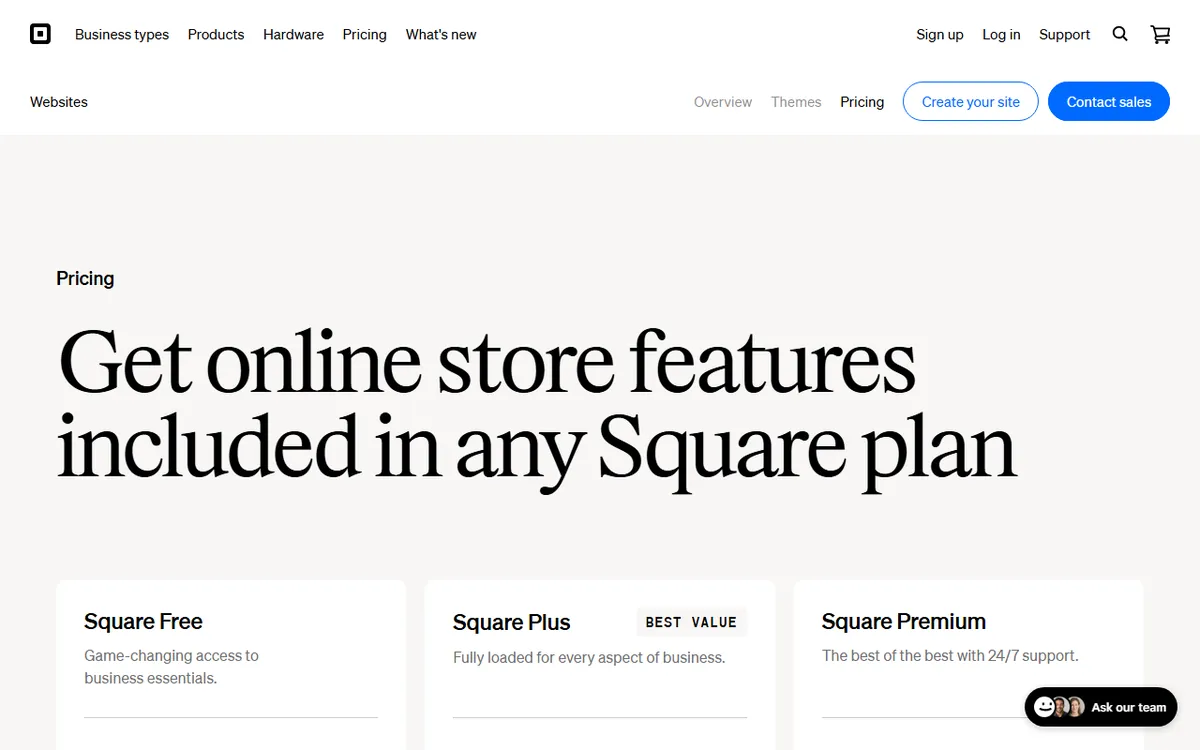
As of November 2026, Square Free costs $0 a month, Square Plus costs $49 a month per location, and Square Premium costs $149 a month per location. Plus and Premium include a 30-day free trial. If you do not have a site yet, our guide to making a restaurant website compares the broader options.
Prepare your account and items
- Set up a Square account or sign in, then verify your business location and hours.
- In Square Dashboard, go to the Item library and create each item by adding its name, price, photo and description.
- Open an item and locate Fulfill orders. Edit Online fulfillment methods, choose Pickup and Local delivery as needed, then click Done and Save.
- Sort items into categories or menus. Square allows you to manage menus and choose what appears on the ordering page.
Square also allows you to choose an item prep time. Open the item, switch off Use location default, pick a custom time and save. Set a longer time for dishes that take more than your usual time, so customers get realistic pickup times.
Keep descriptions brief and say what each dish contains, and add a photo for every popular item. Since customers cannot ask questions at the counter, include allergen notes and size details in the description.
Add an ordering page to a Square Online site
With Square Plus or Premium, the personalized order screen uses the Order Online template. Square's help page for creating an order online page outlines these steps:
- In the editor, open your Square Online site.
- Create a new page and select the ordering template. Choose either a Shop All page or an Order Online page.
- Connect the menus or categories you want customers to view.
- Check the page preview on desktop and phone.
- Publish your site.
Square's article says time-based menus, such as a lunch menu shown only at midday, are not offered with the Shop All ordering-page template. For menus that change by time, choose the Order Online template.
A new site includes a free address such as yourbusiness.square.site, which Square says never expires. You can link a domain you already own, create a custom subdomain such as order.yourbusiness.com, or purchase a domain through Square. For readers comparing builders, our Wix guide shows how Wix handles connecting a domain.
Create a free ordering profile instead
To skip a full website, set up an online ordering profile under Online in your Dashboard. Square says it is free to launch with any Square plan. You receive a link to add to your Google Business Profile, social accounts or an existing website. Square also says you can share the profile's QR code.
Table ordering by QR code, which lets customers order from their seats, is a separate feature that requires Square Plus or Premium.
Set up pickup and curbside
Go to Settings, then Account and Settings, then Fulfillment methods, then Online pickup and delivery. Beside your location, click Set up location and answer Yes to pickup. Then:
- Choose whether Square automatically calculates pickup times.
- Open the Pickup tab, then set the timing, pickup hours and time zone.
- Set a minimum order if needed, and restrict dates for holidays.
- Turn on curbside if you offer it. Curbside requires a business phone number.
- Save.
For curbside, Square can let customers text HERE to say they have arrived. Their arrival then appears on your point of sale. Turn on order status texts under Online, Communications, Email and Text Alerts.
Set up local delivery or on-demand delivery
In the same Online pickup and delivery setup, answer Yes to delivery and choose one of two types. A location cannot use both at once on a Square Online site, but you can switch between them.
- My own couriers: your staff or drivers make deliveries. Set a region by postal code or radius, a delivery fee, a service fee, a minimum order and delivery hours.
- On-Demand Delivery: a delivery service picks up and delivers orders. Square recommends the Best available option. Advanced options also include DoorDash or Uber Eats and Postmates. A courier is dispatched automatically, and orders appear on your point of sale.
For an ordering profile, Square explains delivery areas and fee options under Online, Ordering profile, Settings, Delivery. You can offer free delivery, charge one fee for every order, offer free delivery above a minimum, or set fees based on distance. The delivery provider charges a fee for each confirmed delivery. Depending on your setup, you or your business pays it. Alcohol delivery has additional rules, and no-contact delivery is unavailable for orders with alcohol.
Taxes, tips and payment methods
Review taxes before launch. Square offers an online delivery and pickup tax overrides setting under Settings, Account and Settings, Payments, Sales taxes. There, choose how tax is calculated for delivery and pickup and whether delivery fees are exempt. Ask your accountant which rules apply to you.
To set up tips, go to Website settings, then Checkout, then Tipping, and enable Collect tips. Choose Smart tips or percentage tips only. Customers can change or remove the amount. Tipping for on-demand delivery is always allowed, and the provider sets the default.
Checkout accepts cards automatically. You can enable Apple Pay, Google Pay and Cash App Pay in the website checkout settings. Square says Apple Pay appears only when the customer is using Safari.
What online ordering costs
| Cost | What Square lists |
|---|---|
| Online ordering profile | No added monthly fee or startup cost |
| Online card payments, Square Free | 3.3% + 30 cents |
| Online card payments, Plus and Premium | 2.9% + 30 cents |
| Delivery | The delivery provider charges per confirmed delivery, and the amount varies |
Square promotes savings of up to 30% in marketplace commissions on direct orders. Its footnote explains that this estimate assumes a 30% commission from third-party delivery partners, so your actual savings depend on which apps you currently use.
Get orders to your team and test before launch
Find orders in Square Point of Sale under Orders, or in Dashboard under Payments and orders. Open an order and select Mark as to set it to In progress, Ready or Picked up. To print tickets, connect a printer, then open Settings, Hardware, Printers, Profiles in the POS and enable the printer for online and kiosk order tickets. Square's KDS requires a paid plan and Android hardware, and must be set to display online orders.
Before making an announcement, place a test order yourself for pickup and, if offered, delivery. Verify that the ticket prints or appears, taxes look right, text alerts arrive and the pickup time makes sense. Then share the link on your website menu, Google Business Profile and social bios.
If items are missing from the page, make sure Pickup or Local delivery is enabled for the item, the item is assigned to the menu and the site is published.
Sources
- Square online ordering (profile, delivery fees, marketplace savings claim)
- Square Help: create an order online page (templates, plan eligibility, time-based menus)
- Square online store plans (plan costs, processing rates, trial)
- Square Help: in-store and curbside pickup (pickup and curbside setup)
- Square Help: set up delivery options (your own couriers and on-demand delivery)
- Square Help: delivery options for an ordering profile (delivery zones and fees)
- Square Help: create an online ordering profile (profile and QR code)
- Square Help: item settings in the item library (fulfillment options and prep time)
- Square Help: tax overrides for online ordering (tax for delivery and pickup)
- Square Help: free subdomain (square.site address)
Frequently asked questions
Is Square online ordering free?
The online ordering profile has no additional monthly fee or setup cost and works with any Square plan. Processing fees still apply to every online card payment.
Do I need a website to use Square online ordering?
No. A free online ordering profile provides a separate link you can share. A personalized ordering page on a Square Online website requires Square Plus or Premium.
How much does Square charge per online order?
Square's listed online card rate is 3.3% + 30 cents on Square Free and 2.9% + 30 cents on Plus and Premium. Delivery providers charge their own fee for each delivery.