
The result is an icon that opens the site in its own window and updates whenever the site does. It is not an App Store app. To set it up, use "Add to Home Screen" and keep "Open as Web App" turned on.
This guide explains the steps in Safari and Chrome, changes in iOS 26, what web apps can and cannot do, how to remove one, and what a website owner can configure to improve how it works. The details are from Apple, Google and MDN documentation, checked on 4 November 2026.
Add a website to the Home Screen in Safari
Apple explains the steps in its guide to making a website an app in Safari.
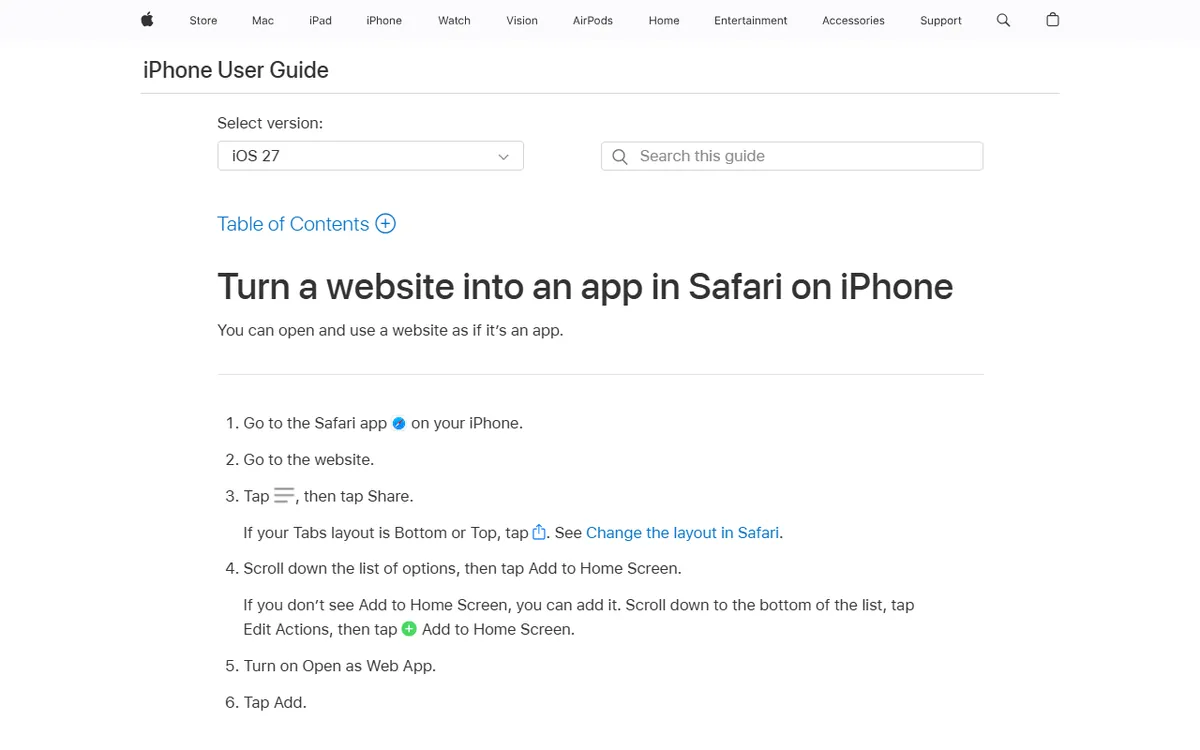
- In Safari, go to the website.
- Tap Share. Depending on Safari's layout, you might need to tap the page or menu button first.
- Scroll through the share sheet, then tap Add to Home Screen.
- If you don't see the option, scroll to the bottom of the sheet, tap Edit Actions, then add it.
- Change the name if you want a shorter one.
- Keep Open as Web App on, then tap Add.
The icon appears on your Home Screen. Tap it to open the site without the usual Safari address bar and toolbars, provided it opens as a web app.
What changed in iOS 26
Earlier iOS releases depended on the site's own settings to open in full screen. WebKit's Safari 26 notes say that when you add a website, an Open as Web App option is now available and turned on by default, allowing any website to open in an app-like window. Turn it off, and the icon becomes a regular browser bookmark instead.
This behavior remains in the current release, which Apple lists as iOS 27.2 as of 4 November 2026. On an older iOS version, your site needs the right code to open in full screen. The owner section below covers this.
Add a website in Chrome on iPhone
Chrome works as well, with iOS and WebKit handling the result rather than a separate Chrome engine. Google explains the steps in its Chrome web apps guide.
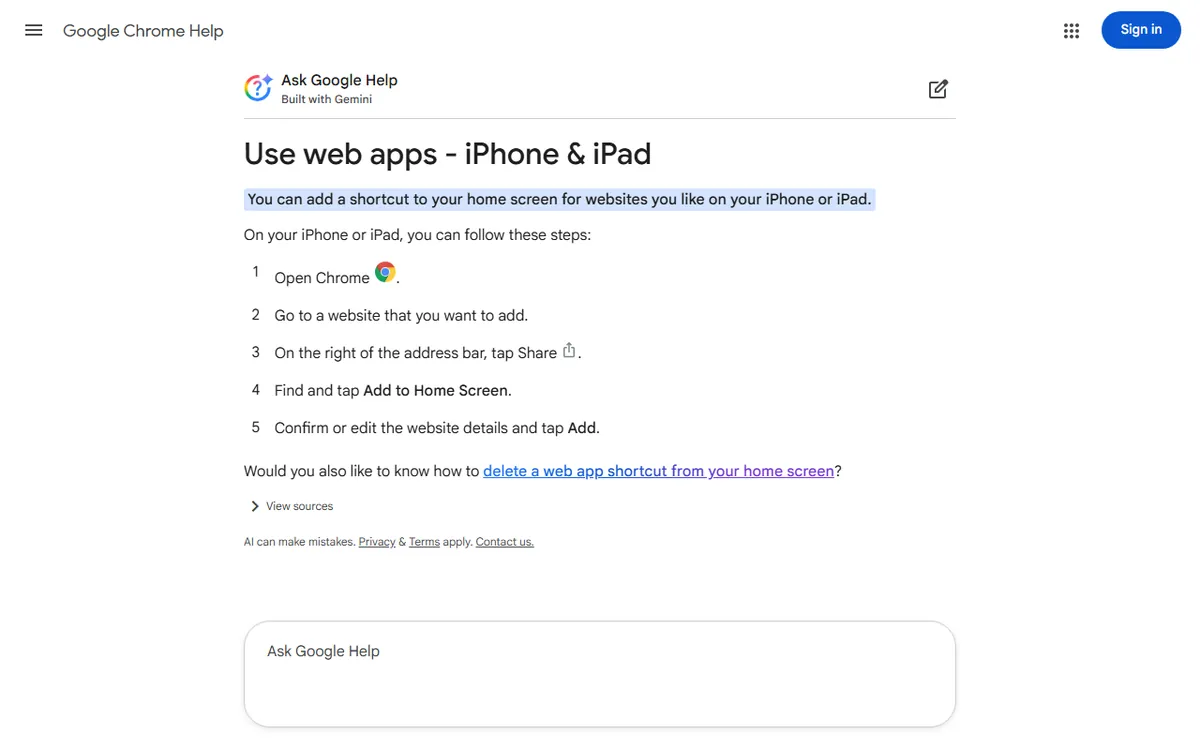
- Open Chrome, then visit the website.
- Tap Share to the right of the address bar.
- Tap Add to Home Screen.
- Confirm or change the website details.
- Tap Add.
Google documents the Chrome steps but not the "Open as Web App" switch, so Safari is the best documented route. MDN says that on iOS 16.4 and later, web apps can be installed through the Share menu in Safari, Chrome, Edge, Firefox and Orion.
Web app or native app: what is the difference
A native app is downloaded from the App Store and built for the iPhone. A web app is a website with an icon that, when configured for it, opens without browser controls. It updates whenever the site does, and it is not available in the App Store.
A web app can access some device features when the browser supports the web interface and you grant permission. Apple says Home Screen web apps can request access to the camera, microphone, and location through system prompts. These features require a secure HTTPS connection.
Some limits remain:
- Web push notifications are available only to Home Screen web apps on iOS 16.4 or later, and only after the user grants permission. An open browser tab alone is not enough.
- Current Safari on iOS does not support Background Sync, so queued tasks should not be expected to run after the app closes.
- Offline access depends on how the site was built. The site needs to be configured to cache its pages.
- Websites cannot start the install prompt on iOS. The user adds the app using the share sheet.
If you need extensive device access or App Store distribution, a web app may not be sufficient. The no-code app builder guide explains tools for creating real apps.
Remove a web app from your Home Screen
Press and hold the icon on the Home Screen. For a Chrome shortcut, Google says to tap Delete Bookmark. For a Safari web app, select the displayed delete option, labeled Delete Bookmark, or Remove App and then Delete App, depending on your iOS version. Remove from Home Screen only hides the icon, leaving it in the App Library.
What site owners can set
If you run the website, you decide how it appears as an app. The two most important things are the icon and the web app manifest.
The icon
Apple's archived Safari documentation says to place a PNG file named apple-touch-icon.png in the root folder of the site to set an icon for every page. For a single page, add a link in the page head, such as <link rel="apple-touch-icon" href="/custom_icon.png">. You can supply several sizes with the sizes attribute, and iOS uses the most appropriate one. Check Apple's Human Interface Guidelines for the current icon sizes.
The title and full-screen mode
Apple describes a meta tag named apple-mobile-web-app-title that sets the name shown below the icon. If it is absent, the page title appears instead. Setting the apple-mobile-web-app-capable meta tag to yes enables standalone mode, hiding Safari’s address bar and toolbar. Apple documents these settings in its archive, so test them with your iOS version.
The web app manifest
A manifest is a JSON file that tells the browser how the app should look and behave. You link it from the head with <link rel="manifest" href="/website-builders/website-as-iphone-app/manifest.json">, and every page must reference it. MDN lists name, icons, start_url and display among the main members, and display set to standalone gives an app-like experience without navigation controls such as the URL bar, although a status bar may remain. Chromium browsers also require a 192 pixel and a 512 pixel icon for installability.
Since iOS 26, a manifest is not required to add a site as a web app, but it can still provide helpful details. A service worker is optional for installation, although MDN notes that many apps use one for offline access, and Apple’s documented web push requires one. Installability requires HTTPS.
To see whether a site has a manifest, view its page source on a computer and look for rel="manifest". In Chrome DevTools, you can find the manifest in the Application panel. A manifest link alone does not show that the site follows every browser’s rules.
If you are still creating the site itself, begin with the guide to building a website, then compare options in the website builders overview.
Fix common problems
- The site opens in Safari rather than in its own window. Open Share again, delete the old icon, then add it again with Open as Web App turned on. Older iOS versions require the standalone settings above.
- Add to Home Screen is not shown. Scroll to the bottom of the share sheet, then use Edit Actions to add it.
- The icon does not look right. Make sure the site provides an apple-touch-icon in PNG format. If it does not, iOS looks in the site root for icons with that name.
- Notifications are not coming through. They require iOS 16.4 or later, a site that supports web push, and your permission.
Be cautious of sites that ask you to install a configuration profile to make an app. You do not need a profile to turn a website into an iPhone app, and Apple warns that profiles can give an organization access to data or location information. Install a profile only when you trust the person asking.
Sources
- Apple: Make a website an app in Safari on iPhone (instructions and Open as Web App)
- WebKit: features found in Safari 26.0 (use any website as a web app)
- Google Chrome Help: work with web apps (Chrome instructions and removal)
- Apple: Setting up web applications (icon, title and standalone mode)
- MDN: How to make PWAs installable (manifest, HTTPS and iOS support)
- Apple: Sending web push alerts in web apps and browsers (push on iOS)
- WebKit: Web Push for web apps on iOS and iPadOS (iOS 16.4)
- Apple WWDC23: New features in web apps (camera, microphone and location)
- Apple: Add or remove configuration profiles on iPhone (profile warning)
- Apple: Delete or remove apps on iPhone (removal labels)
Frequently asked questions
Can any website become an app on iPhone?
On iOS 26 and later, yes. Apple says that adding a website now includes an Open as Web App option, which is on by default, so any site can open in an app like window. It remains a web app, not a native app from the App Store.
Does Chrome work for this on iPhone?
Yes. In Chrome on iOS, tap Share beside the address bar, select Add to Home Screen, change the details if you want, then tap Add. Google says the shortcut opens as a web app if one is available, and otherwise in the default browser.
How do I remove a web app from my iPhone?
Touch and hold the icon on the Home Screen, then select the delete option shown. Google documents Delete Bookmark for a Chrome shortcut, while Apple's labels may be Delete Bookmark or Remove App then Delete App.
Do iPhone web apps support push notifications?
Yes, since iOS 16.4, but only for Home Screen web apps and only after the user gives permission. A regular Safari tab is not enough.