
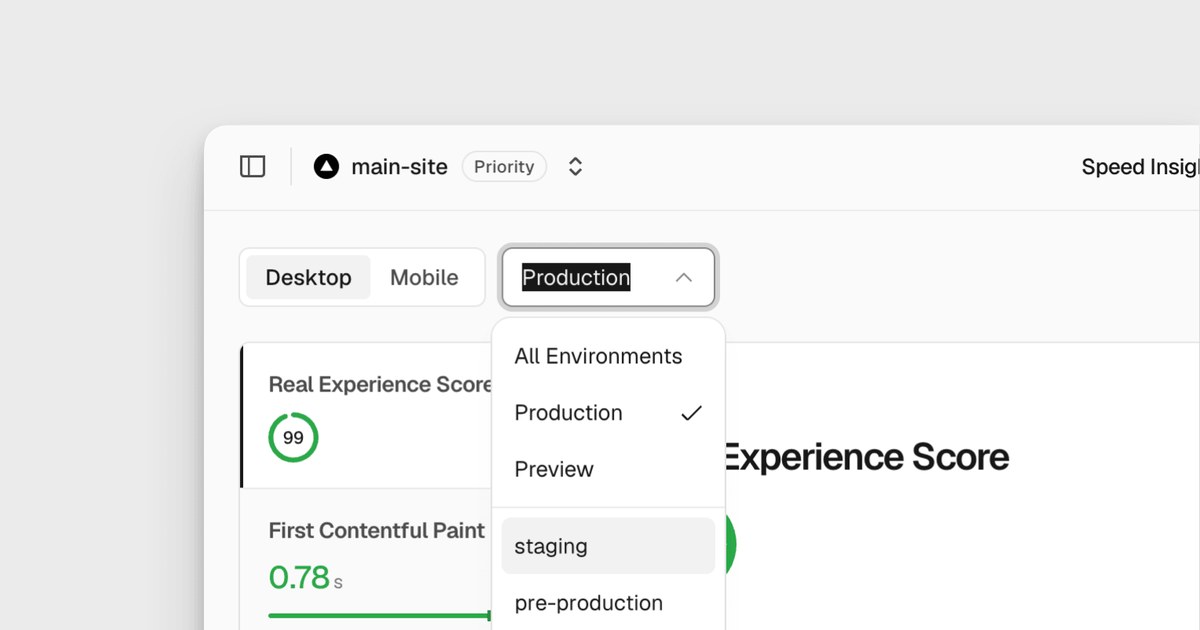
Data from custom environment deployments was once filed under Preview, but is now filed under the environment where it originated.
Vercel makes this available to v0 users. When you first deploy a v0 chat, v0 creates a matching Vercel project if one does not already exist, and the project can use Speed Insights and Web Analytics. If your team has a Pro or Enterprise plan and runs staging for that project, the new reporting applies to staging.
What is new
- Data from custom environment deployments is attributed to that environment instead of Preview.
- The Environment dropdown in Speed Insights and Web Analytics lists custom environments next to Production and Preview.
- The vc metrics command in the Vercel command line tool can query custom environment data.
- The query builder can filter and break down data by environment.
- The Aggregation API can query the data programmatically, for Web Analytics only.
Taken from the official update: vercel.com [1]
Only the attribution changes
The change affects where data is filed. Vercel says it collects no new data points and requires no configuration changes. You do not need to reinstall anything or edit your project to see the difference.
Fact checked on 12 Nov 2026 against vercel.com [1]
The practical change affects your Preview numbers. Custom environment traffic used to count toward Preview, so a busy staging environment could blur what Preview showed. Now each custom environment has its own view, while Preview shows what it was meant to show.
Fact checked on 12 Nov 2026 against vercel.com [1]
Whether anything changes depends on your setup. Projects on a Hobby plan cannot use custom environments, so nothing changes for those projects. Pro and Enterprise projects without a custom environment see no change either. For projects that deploy to a custom environment, those deployments now count under that environment, and Preview figures no longer include them.
Fact checked on 12 Nov 2026 against vercel.com [1], vercel.com [4]
Vercel says data from custom environments was previously attributed to Preview and is now attributed to the environment itself. The announcement does not clarify whether data recorded before 10 November 2026 was moved or whether only data collected from that date onward is included.
Fact checked on 12 Nov 2026 against vercel.com [1]
Where to find custom environment data
To view a custom environment in Speed Insights, select your project and open Speed Insights from the dashboard sidebar. Then choose the environment from the Environment dropdown.
Fact checked on 12 Nov 2026 against vercel.com [2]
In Web Analytics, open Analytics from the project's dashboard sidebar, then use the environments dropdown. Production is selected by default, so switch it to see staging or QA.
Fact checked on 12 Nov 2026 against vercel.com [3]
If you prefer entering commands, the update says you can query the same data with vc metrics, a command in the Vercel command line tool. The query builder, a dashboard tool for sorting and breaking down your numbers, can filter data by environment and break it down there. This is useful when comparing two environments side by side.
Fact checked on 12 Nov 2026 against vercel.com [1]
The Aggregation API lets a script retrieve the numbers without opening the dashboard. It can query custom environment data for Web Analytics only. Speed Insights data is not included, so account for that in automated reports.
Fact checked on 12 Nov 2026 against vercel.com [1]
Plans and what custom environments cost
Custom environments are available with Pro and Enterprise plans, so this update matters only to users on either plan. Teams can create them for workflows such as staging and set options specific to that environment.
Fact checked on 12 Nov 2026 against vercel.com [1], vercel.com [4]
The Pro plan includes one custom environment per project, and Enterprise includes 12, at no extra cost. As a result, a single staging environment on Pro needs no extra environment payment for this reporting.
Fact checked on 12 Nov 2026 against vercel.com [4]
You can add more in packs of five for $50 per month, with a limit of 16 per project on Pro and 22 on Enterprise.
Fact checked on 12 Nov 2026 against vercel.com [4]
Each tool has its own pricing page. The free Speed Insights tier is available on all plans, while Speed Insights Plus is available on Pro and Enterprise. Web Analytics is supported on Pro and Enterprise, with event usage billed based on the plan. Pro also offers a paid Web Analytics Plus add-on.
Fact checked on 12 Nov 2026 against vercel.com [6], vercel.com [7]
What this means if you build with v0
On your first v0 chat deployment, v0 creates a matching Vercel project if none exists. The deployment's inspector link takes you to that connected project, where you can manage settings such as Web Analytics and Speed Insights.
Fact checked on 12 Nov 2026 against api2.v0.dev [5], v0.app [8]
To enable Vercel analytics in v0, go to Project menu, Settings, Analytics. Using custom environments with that project also requires a Pro or Enterprise plan on the Vercel side.
Fact checked on 12 Nov 2026 against v0.app [9], vercel.com [4]
What the official notes do not say
- The update does not say whether the rollout was staged or whether it reached everyone on the announcement date.
- The announcement does not say whether data recorded before 10 November 2026 has been moved from Preview to the custom environment, or only data collected from then on.
- The pages Vercel points to do not give a separate analytics or metrics quota or retention limit for custom environments.
- The update does not say whether using these analytics features with custom environments adds a charge beyond the custom environment pricing.
- The v0 documentation does not say whether Web Analytics or Speed Insights has a separate limit on Pro for a custom environment, or whether a custom environment needs its own enablement.
How it helps: a freelancer who builds sites for small business clients with v0, deploys them on a Vercel Pro plan and keeps a staging environment for client sign off
The task. Before moving a redesigned page to Production, confirm that it performs as well on staging as it does on the live site
- Confirm the team is on Pro or Enterprise and that staging is set up as a custom environment on the project.
- Open the project in the Vercel dashboard and choose Speed Insights from the sidebar, then pick staging in the Environment dropdown to read its results.
- Open Analytics from the sidebar. It opens on Production by default, so switch to staging to see staging traffic.
- Use the query builder to break the data down by environment and compare staging with Production in one view.
The result. Staging has separate performance and traffic numbers from Production and Preview, keeping the prelaunch comparison distinct from other preview deployments.
Fact checked on 12 Nov 2026 against vercel.com [1], vercel.com [3], vercel.com [4]
Other ways to use it
The team can use the query builder to filter and break down data by environment, then review QA numbers without Preview deployments getting in the way. This requires a plan with enough custom environments.
Fact checked on 12 Nov 2026 against vercel.com [1], vercel.com [4]
Sources
- https://vercel.com/changelog/speed-insights-and-web-analytics-now-support-custom-environments (official update)
- https://vercel.com/docs/speed-insights
- https://vercel.com/docs/analytics/using-web-analytics
- https://vercel.com/docs/deployments/environments
- https://api2.v0.dev/docs/vercel-integration
- https://vercel.com/docs/speed-insights/limits-and-pricing
- https://vercel.com/docs/analytics/limits-and-pricing
- https://v0.app/docs/deployments
- https://v0.app/docs/quickstart
Facts in this article were checked against these sources on 12 Nov 2026. Product details change, so check the official page before you rely on them.