
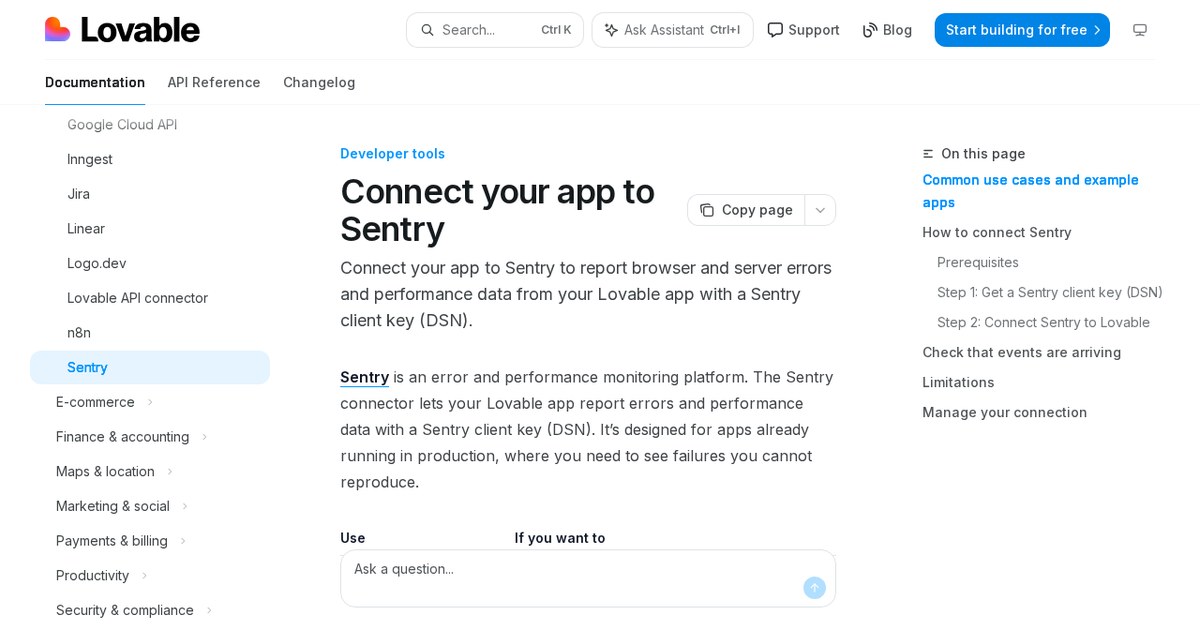
This is useful if you build sites with Lovable and publish them for real visitors. Some failures happen only on a visitor's device or on the server, so they do not appear while you build. Sentry gathers those reports in one place.
Add the connector through Connectors, or ask Lovable to connect it from inside a project.
What is new
- The Sentry connector now works in your app as well as in the project chat.
- Your app can report browser errors, server errors and performance data to Sentry.
- Reports are tied to your Sentry project through a client key (DSN).
- You can add it from Connectors or ask Lovable in a project to connect it.
Taken from the official update: docs.lovable.dev [1]
What you had before and what is different now
Before this update, the Lovable changelog mentioned Sentry only as a chat connector, available since December 23, 2025. It let Lovable read and investigate your Sentry data while you build. The new app connector works in the opposite direction: your published app sends errors from real visitors to Sentry.
Fact checked on 11 Nov 2026 against docs.lovable.dev [1], docs.lovable.dev [2]
The documentation covers browser errors, such as a page or button action that does not work, and server errors, such as a failing API route. Server errors originate in the app's server code, for example, an API route. The documentation does not specify whether that code must run on Lovable Cloud. It also does not identify all error types captured by default or specify particular performance measurements.
Fact checked on 11 Nov 2026 against docs.lovable.dev [2]
For having Lovable read your Sentry issues, exceptions and performance data as context while it builds, use the chat connector.
Fact checked on 11 Nov 2026 against docs.lovable.dev [2]
What you need before you connect
You need a Sentry account and project, a client key (DSN) from that project, and permission to create connections in your Lovable workspace. On the Free and Pro plans, workspace members with the editor role or higher can create connections. On Business and Enterprise, admins and owners decide who can create them. Some Enterprise workspaces have the connector disabled by default, so an admin may need to enable it first.
Fact checked on 11 Nov 2026 against docs.lovable.dev [2]
The connector works with a client key from Sentry's cloud service. It does not support a Sentry auth token or a DSN from self-hosted Sentry.
Fact checked on 11 Nov 2026 against docs.lovable.dev [2]
Keys, environments and what to watch for
Each connection stores one DSN, which is included in the published app and used to send events directly to Sentry. Since anyone can see it there, treat it as a public identifier, not a secret.
Fact checked on 11 Nov 2026 against docs.lovable.dev [2]
You can create multiple Sentry connections with different client keys and link them to projects. The documentation gives separating development from production as an example. This is a good practice because test errors then stay out of the list of problems real visitors encounter.
Fact checked on 11 Nov 2026 against docs.lovable.dev [2]
Do not count on the save step to catch a typo. Lovable checks only the DSN format when you save and does not verify it with Sentry, so an incorrect key can still be accepted. After connecting, trigger an error and check that it appears in Sentry.
Fact checked on 11 Nov 2026 against docs.lovable.dev [2]
Monitor your Sentry usage. Events from your app count toward your Sentry plan, and Sentry, not Lovable, manages billing and quota. For a busy site, check your Sentry account.
Fact checked on 11 Nov 2026 against docs.lovable.dev [2]
What the official notes do not say
- The official pages do not specify an app or version rollout cohort for the Sentry app connector.
- They do not say that the Sentry app connector replaces another feature.
- The Lovable documentation describes no way to set up Sentry reporting inside an app before November 9, so it does not say whether adding the Sentry code by prompt was possible earlier.
- They give no complete list of error types captured by default and name no specific performance measurements.
- They give no numeric event quota, no maximum number of Sentry connections and no Lovable-side price for this connector.
How it helps: a freelancer who built a booking site for a local business in Lovable and has now published it
The task. Learn why some visitors cannot finish a booking without asking them to explain what happened.
- Create a project in your Sentry account and copy its client key (DSN).
- In your Lovable project, open Connectors and select Sentry, or ask Lovable in the project to connect it.
- Paste the DSN into the connection. If you keep a test version, create a second connection with a different DSN for it.
- Publish the app, trigger a test error, and check that the event appears in your Sentry project.
The result. Sentry now receives browser errors, server errors and performance data from the live app, letting you see failures you could not reproduce yourself.
Fact checked on 11 Nov 2026 against docs.lovable.dev [2]
Other ways to use it
Using two connections with different client keys keeps staging errors separate from those experienced by real visitors.
Fact checked on 11 Nov 2026 against docs.lovable.dev [2]
If your workspace has the connector disabled, an admin or owner must enable it before members can add Sentry.
Fact checked on 11 Nov 2026 against docs.lovable.dev [2]
Sources
Facts in this article were checked against these sources on 11 Nov 2026. Product details change, so check the official page before you rely on them.