
Canva announced the controls on 19 November 2026 and says they are available that day at no extra cost. If you use Canva to build simple sites, landing pages or social graphics, these settings determine how much AI appears in your workspace and in the stock content you choose from.
Admins already had AI permissions for their organizations, and Canva says these new controls are being added to them.
What is new
- Generative AI Control: one switch that turns generative AI features on or off across Canva.
- AI-Generated Content Control: an option that shows less AI-generated content in library search results and recommendations.
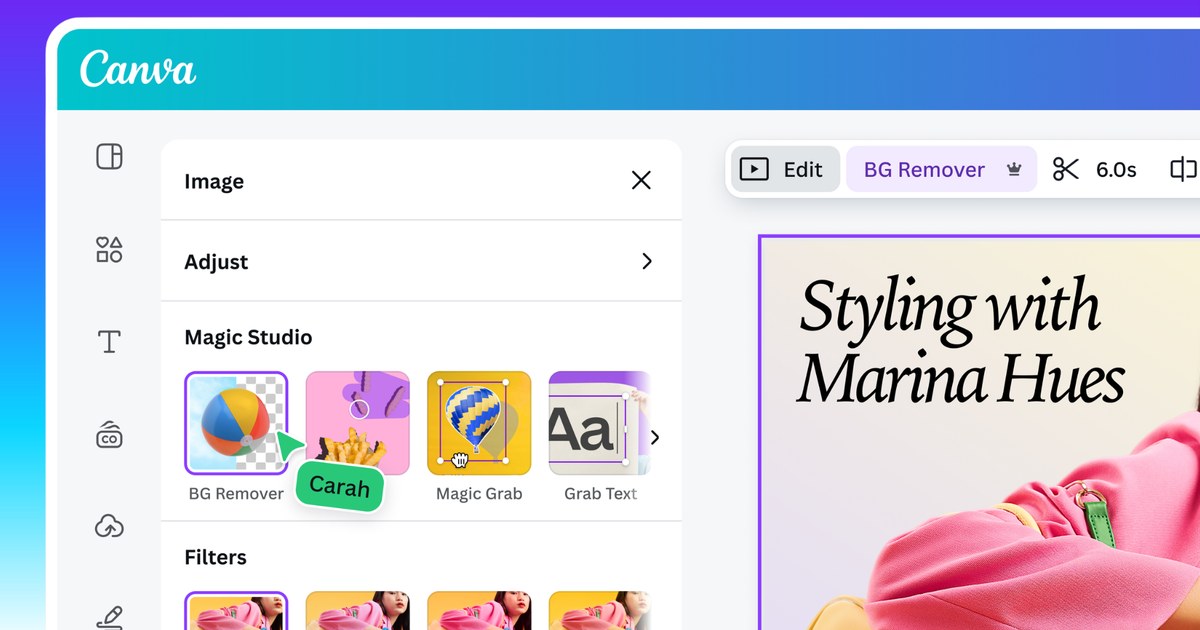
- Assistive editing tools such as Background Remover and Magic Grab stay available when generative AI is off.
- Both controls come to Canva Free and Canva Pro from 19 November 2026.
Taken from the official update: canva.com [1]
Where the two controls live
You can find the Generative AI Control under Profile, then Settings, then Permissions, and you can reverse the setting. The AI-Generated Content Control is under Profile, then Your account, then AI Personalization. It changes only what appears in the library, not designs you have already made. Since the controls are in different menus, you can use either one without the other.
Fact checked on 19 Nov 2026 against canva.com [1]
What switches off and what stays
The announcement does not name every feature hidden by the Generative AI Control, so it does not spell out the exact scope in one place. Canva Help says Magic Studio uses generative AI and names Magic Design, Magic Media, Magic Expand and Magic Write as examples. The switch is meant to hide features of this kind.
Fact checked on 19 Nov 2026 against canva.com [1], canva.com [3]
Canva's help page on admin permissions names the features organizations can control: Magic Write, Magic Design, Magic Edit, Magic Media, Transform into Doc, Dream Lab, Ask Canva for AI-generated design advice and Canva Code. These are part of the older admin controls, not the new personal switch, but the list shows how Canva groups its AI features.
Fact checked on 19 Nov 2026 against canva.com [2]
If you build websites in Canva, note that Canva Code appears on the list. Canva says it is an AI-powered feature that generates code for interactive websites and designs. The Canva AI assistant may not disappear entirely, either. In the admin settings, turning off AI design advice still leaves Canva-related help, but not design advice.
Fact checked on 19 Nov 2026 against canva.com [2]
The assistive editing tools remain available. Canva says Background Remover and Magic Grab still work with generative AI turned off because they edit existing content rather than generate new content. As a result, they do not trigger an AI-generated content label, and Canva does not add metadata marking a design as AI-generated.
Fact checked on 19 Nov 2026 against canva.com [1]
However, availability does not mean these tools are free. Canva Help says Background Remover is included with Canva Pro, Teams, Education and Nonprofits, but generally not Canva Free, which gets one free try. Magic Grab is listed for the same plans, but not Canva Free. The crown icon beside BG Remover in the picture above indicates the same thing.
Fact checked on 19 Nov 2026 against canva.com [4], canva.com [5]
How this fits with team and organization controls
The announcement says the new controls are being added to AI permissions already available to admins on Canva Business, Enterprise, Teams and Education. It does not give a start date for those permissions.
Fact checked on 19 Nov 2026 against canva.com [1]
Canva Help says its Magic and AI access controls are available only to owners and admins on Canva Teams, Enterprise and Education. Teams access is enabled by default, while Education access depends on the role. The page was marked updated on 19 October 2026.
Fact checked on 19 Nov 2026 against canva.com [2]
The announcement includes Business, but the Help page does not. Business admins should check their admin settings before assuming which controls apply. Anyone working within a team should also ask the admin.
Fact checked on 19 Nov 2026 against canva.com [1], canva.com [2]
What the official notes do not say
- The announcement does not list every feature the Generative AI Control hides.
- It does not say whether members of a Teams or Business account also get the two personal controls.
- It does not name an earlier feature or setting that the new controls replace.
- It gives no numbers for how much AI-generated library content the content control removes, and it does not promise that such content disappears completely.
- It names Canva Free and Canva Pro but does not break availability down by app, device or version, and it gives no further rollout schedule.
How it helps: a freelancer on Canva Pro who builds landing pages and social graphics for small local businesses and wants client work to rely on human-made library content
The task. Limit AI in the workspace and library while keeping quick photo edits
- Open Profile, then Your account, then AI Personalization, and turn on the AI-Generated Content Control so library search and recommendations show less AI-generated content.
- Open Profile, then Settings, then Permissions, and switch off the Generative AI Control if you do not want generative features in the editor.
- Keep using Background Remover and Magic Grab for photo edits, since they stay available with generative AI off and are included with Canva Pro.
- Switch generative AI back on later if a client brief calls for it.
The result. Browsing the library favors human-made work, generative features stay hidden, the assistive editing tools included in your plan remain available, and existing designs stay the same.
Fact checked on 19 Nov 2026 against canva.com [1], canva.com [4], canva.com [5]
Other ways to use it
They can enable the content control to see fewer AI-generated results and recommendations, while keeping all generative tools available for days when they want a quick first draft.
Fact checked on 19 Nov 2026 against canva.com [1]
They can turn off generative AI and keep the assistive tools included with their plan. Background Remover and Magic Grab are listed for paid plans, so Free users may not have access to either. Canva says using these tools adds no AI-generated metadata to a design.
Fact checked on 19 Nov 2026 against canva.com [1], canva.com [4], canva.com [5]
Related nvudev guides
Sources
- https://www.canva.com/newsroom/news/ai-controls-canva/ (official update)
- https://www.canva.com/help/magic-features-admin-controls/
- https://www.canva.com/help/using-magic-studio-safely-and-legally/
- https://www.canva.com/help/background-remover/
- https://www.canva.com/help/using-magic-grab/?msockid=082e89921c7d64f8019a9fb71db465f1
Facts in this article were checked against these sources on 19 Nov 2026. Product details change, so check the official page before you rely on them.